
Build your community profile: new player cards and The Armoury
Profiles have been redesigned around who you are: a new player card with your own cover image, dedicated club verified cards, your rating and rank up top, and an Armoury to show off and share the kit you run.
Before you buy from someone, you tap their name. Their profile has always had the basics: their name and bio, their feedback rating, their listings and reviews, and whether they are verified with a club. What it did not do was put the things you actually check first at the top, or say much about the player behind the listings.
Profiles have now been redesigned around who you are, how well you trade, whether you are verified and what kit you run. You can add a cover image, your clubs get their own cards, and there is a new Armoury for showing off your setups. Profiles look the same on the web app and in the mobile app from version 1.4.0. This post walks through the new layout, and how to set yours up so it does some work for you.
The new layout
A profile now opens with your player card, with a card for each club you are a verified member of directly beneath it. Next to them sit:
- Your trade rating. Your star rating, how many reviews you have and how many deals you have done.
- Your rank. Your rank and points, how far you are from the next rank, and where you sit on this season's and the all-time leaderboards.
- Your primary kit. The top item from your Armoury, with its photos, description and upvotes, and a link to the rest of your Armoury.
Below that, your listings, Armoury, feedback, medals and discussions each have their own section, so a busy profile no longer turns into one long scroll. On the web app these sit side by side, and in the mobile app they stack into one column, but the player card and your club cards come first on both.
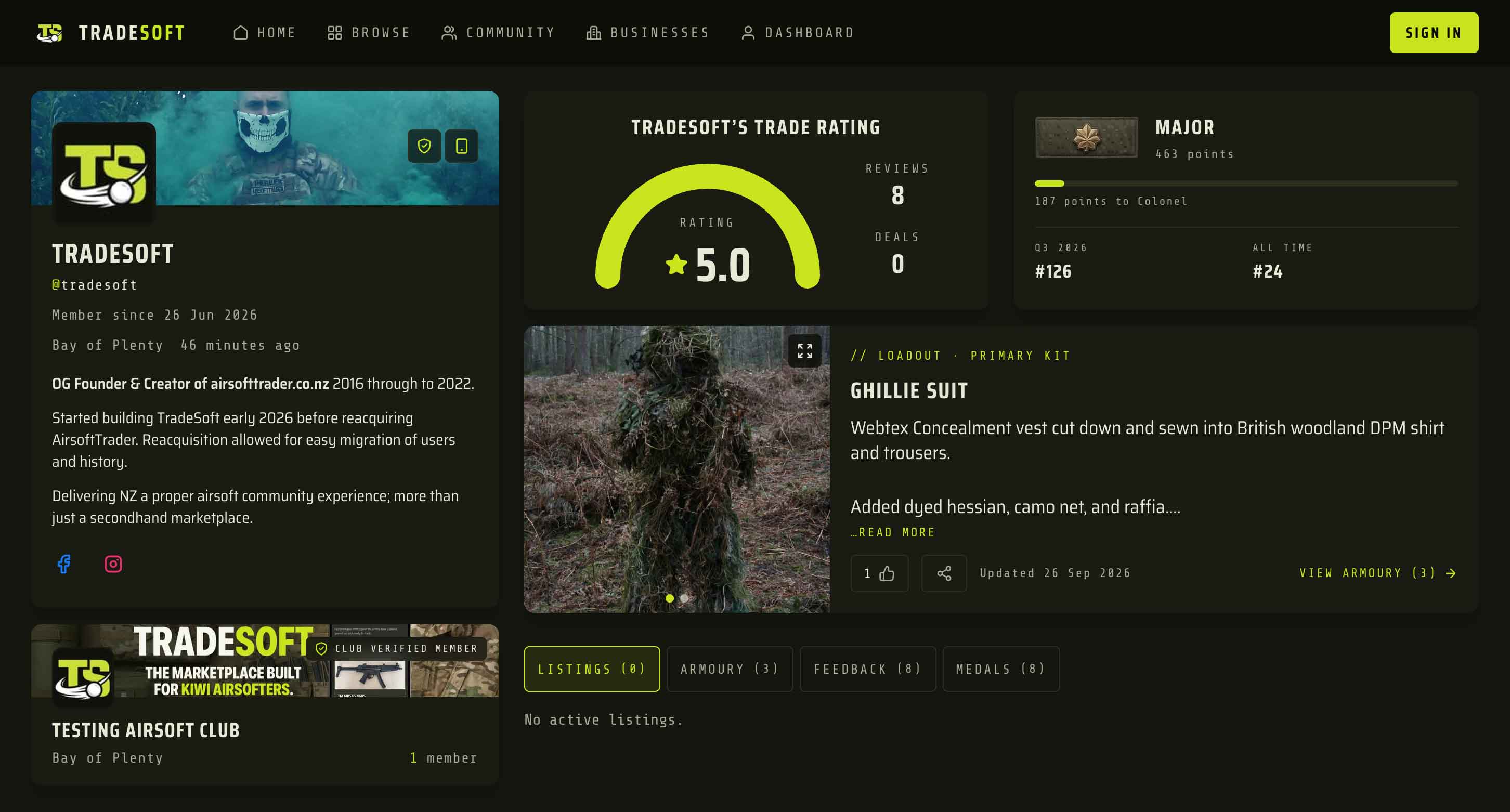
Your player card and club cards
The player card is the part of your profile that is most yours. It shows:
- A cover image across the top, which is new, with your profile photo overlapping its bottom edge.
- Your trust markers in the top corner: a shield if you are a verified member of a club, and a phone icon if your number is verified. Tap either one to see what it means.
- Your name and @handle. Tap the handle to copy it.
- When you joined, your region and when you were last online.
- Your bio, now with basic formatting, and social links for Facebook, Instagram, YouTube and TikTok.
Club verification used to show as the club's name. Each club you are verified with now gets its own card under your player card, with the club's cover image and logo, its name, region and member count, and a CLUB VERIFIED MEMBER tag. It is much harder to miss, which is the point: being vouched for by a club is one of the strongest trust signals on TradeSoft.
The same card on your listings
The seller card on every listing now uses the player card design, so the seller you see on a listing looks like the person you find when you tap through. It is a more compact version: the bio and socials drop off, and in their place it shows your rank insignia beside your name, your star rating and number of reviews, and your club card inside it.
That means your cover image, verified markers and club go with you onto everything you sell.
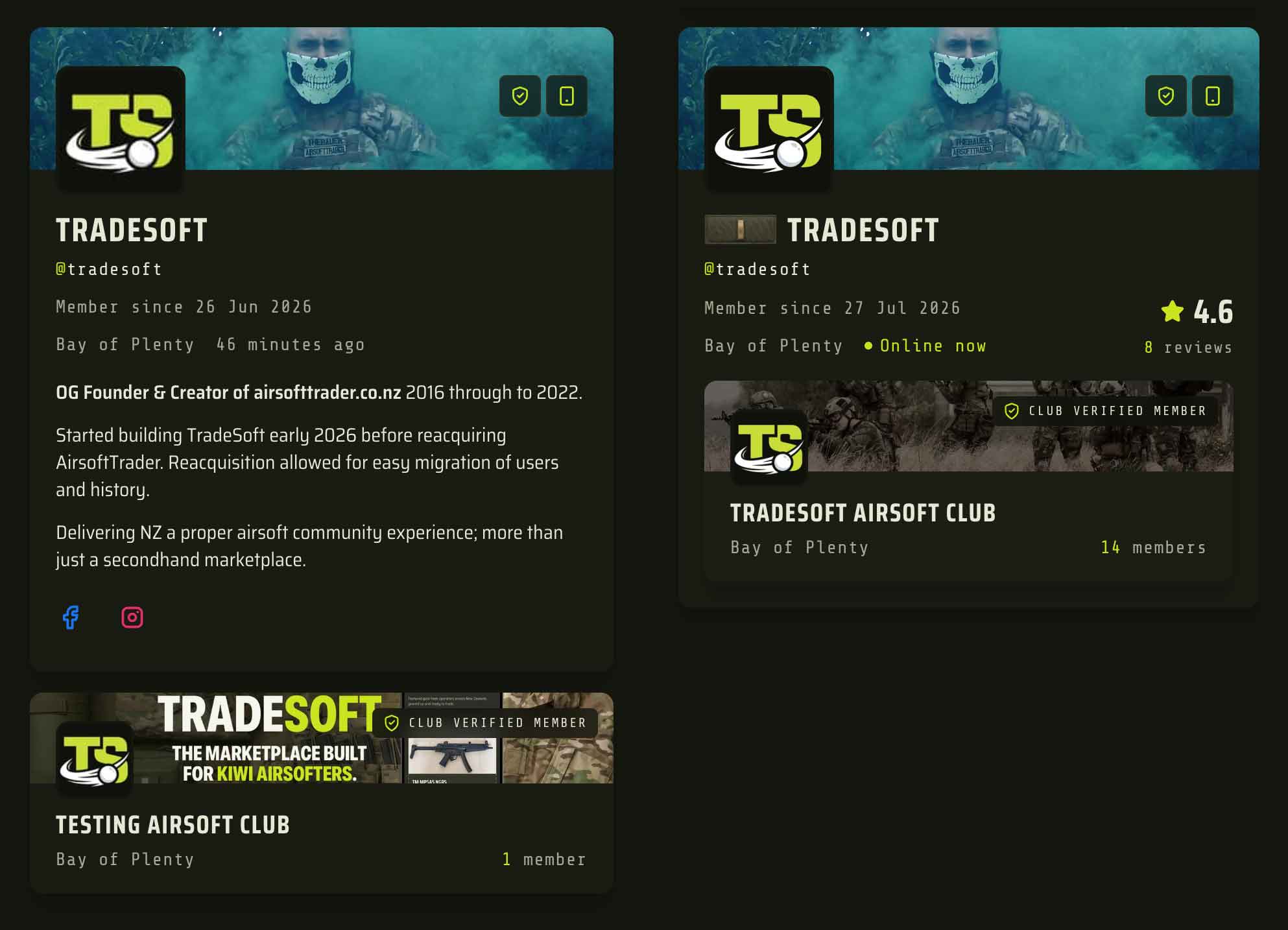
Setting yours up
The first four live in Edit Profile: in the app, tap your avatar (top right), then Edit profile. On the web app, it is in your dashboard. Our guide to editing your profile covers the basics. None of it is required, and you can do it in any order.
- Add a profile photo. A face, your team patch or a shot of you kitted up all work. Without one, your card shows your initials.
- Add a cover image. This is the wide band across the top of your player card. A field shot, your team or your favourite build works well. Pick something wide, since it is cropped to a short band.
- Write a bio. Up to 300 characters, with basic formatting. Say where and how often you play, your club or team, and what you are usually after. That is more useful to a buyer than a list of achievements.
- Link your socials. Type your handle or paste the link to your profile. If you post game footage or builds on YouTube or Instagram, this is where people find it.
- Verify your phone number. It puts the phone marker on your card, and lets you send your verified number in a conversation.
- Get verified by your club. Only your club can add you. Once they do, you get the shield on your player card and a club card under it. Clubs on TradeSoft explains how.
- Add your first Armoury item. More on that below.
If you are not sure what is left, the Finish your profile card on your Account screen lists anything missing and goes away once the list is empty. If you would rather not see it, Don't show this again hides it on both the app and the web app.
Building your Armoury
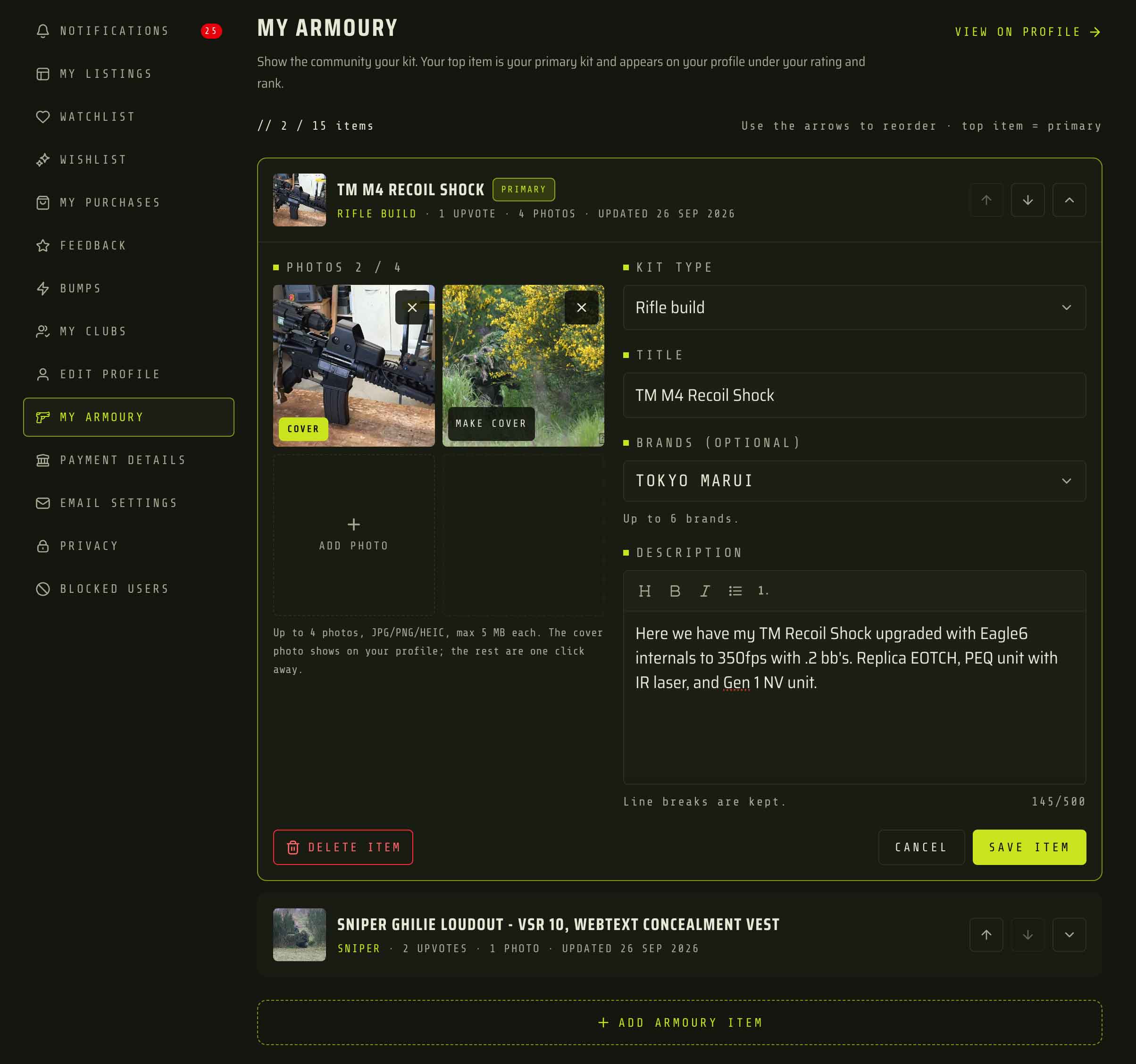
Your Armoury is for the kit you are proud of, whether or not it is for sale. You will find it under My Armoury: in the app, from your avatar (top right), and on the web app, in your dashboard just below Edit Profile. Tap Add Armoury item and fill in:
- Photos. 1 to 4 of them. The one marked COVER is what shows on your profile and in the community feed. Tap Make cover on another photo to swap it.
- Kit type. Rifle build, SMG, Sidearm, Sniper, Shotgun, Support (LMG), Loadout, Gear, Collection or Other. So a full loadout or a shelf of pistols counts too.
- Title. Up to 60 characters.
- Brands. Optional, up to 6. The Armoury feed can be filtered by brand, so tagging the body, internals or optic brands puts your build in front of people researching them.
- Description. Up to 500 characters, with headings, bold, italics and lists. Use it for what the photos do not show: internals, upgrades, FPS, how it shoots, what you would change next.
You can have up to 15 items. Use the arrows to put them in order. Your top item gets the PRIMARY tag and becomes your primary kit, which shows on your profile under your rating and rank. Make it the one that says the most about how you play.
Other players can upvote an item with a thumbs-up, and anyone can see the count, but not who gave them. Your first item also earns you 5 points toward your rank, once per account.
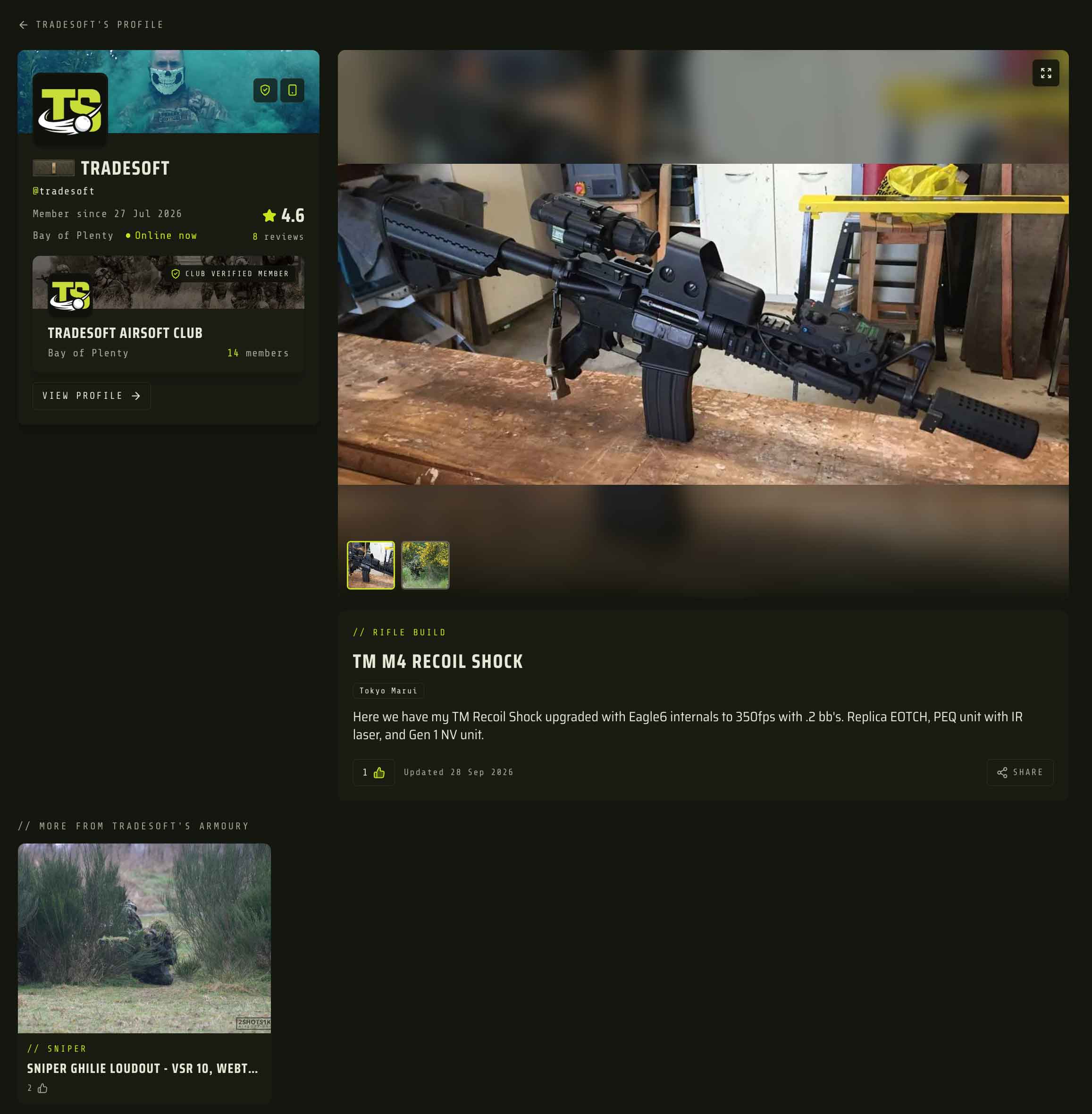
Share your kit anywhere
Every Armoury item has its own page on the web app. Tap Share on any item to get a direct link to it, and post that link anywhere you can post a link: a Facebook group, a team chat, a forum thread or your own socials. Sharing from the app sends the same web link.
Whoever opens it sees the full item, with every photo, the kit type, brands, description and upvotes. Beside it sits your player card and club card, and below it, the rest of your Armoury, with a link through to your full profile. So one shared build shows people everything else you run, and who you are.
To see everyone else's, go to Community > The Armoury. It shows items from players across New Zealand in one feed, searchable and filterable by kit type, brand and location. Tapping an item takes you to that player's profile, which is a good reason to make sure yours is worth landing on.
What other players can see
Everything on your profile, including your Armoury, is public. There is no privacy setting for Armoury items, so if you would rather not show your kit, do not add any. Keep anything you would not want public, like serial numbers or where you store your gear, out of photos and descriptions.
- Upvote counts are public, but nobody can see who upvoted.
- Players you have blocked do not appear in your Armoury feed, and neither of you can upvote the other's items.
- Deleting an Armoury item is permanent. Its photos and upvotes go with it, and any link you shared to it stops working.
- If an item crosses the line, report the player from their profile.