
TradeSoft 1.2.0 is here
Wishlists and email settings now work inside the mobile app, closing the gap with the web app. On top of that: reverse image search on listing photos, ten ways to sort Browse, a Graveyard category for broken gear, links you can tap, and text you can finally copy.
Where you can get it
Four of the changes below are already live on the web app: listing sort orders, the Graveyard category, tappable links in descriptions, and the new wishlist filters. Everything else here is an app change.
Version 1.2.0 is out now: on the App Store for iOS, and on the test track for our Android testers, who were still in closed testing on Google Play at the time. This is not an over the air update, so you need version 1.2.0 installed to get any of the app side. Most phones will have picked it up already, though that depends on whether you have automatic updates switched on. If in doubt, check for updates.
Nobody has to change any settings. Everything here is either off until you use it, or already set to a sensible default.
Wishlists, now in the app
A wishlist describes gear you are hunting for and alerts you the moment someone lists it. Until now you could only build one in the web app. It is now in the mobile app under Account > Wishlist, with the same rules and the same alerts.
Select NEW WISHLIST, name it, then narrow it with any combination of keywords, categories, regions, towns, a price range and condition. You get up to 10 wishlists per account and up to 20 keywords in each, both fixed limits rather than settings. Each rule has a pause switch, a VIEW LISTINGS button showing how many listings currently match (the count stops at "99+"), plus EDIT and DELETE. Deleting is permanent, though alerts you have already received stay in your notifications.
There is also a shortcut. Filter Browse to what you are after and a SAVE AS WISHLIST button appears above the results, carrying your filters straight into a new wishlist.
Your Watchlist saves listings that already exist. It cannot help with gear nobody has listed yet. A wishlist watches for the ones that do not exist, and now you can set one up on the phone you actually browse from.
The rules have not changed from the web launch. Alerts fire when a listing goes live, whether that is a new listing, a relist, or a draft being published, so editing an existing listing into range does not trigger one. Wishlists match items for sale only, because a wishlist is for buying, and one listing matching several of your wishlists still sends a single alert. The original wishlists post has the full detail, including how keyword matching works.
More ways to describe a wishlist
Wishlists also gained four filters, on the app and the web app: a DISTANCE slider, plus Shipping available, Open to trades, Accepts offers and Club verified sellers under MORE OPTIONS.
"An M4 anywhere in New Zealand" and "an M4 I can drive to this weekend" are different searches. Region and town already narrowed by boundary. Distance narrows by how far you are actually willing to travel, from 20 km up to "Any distance".
Distance measures from your home town, so you need your region and closest town set on your profile for the slider to work at all: see editing your profile if you have not filled those in. It measures to the listing's town, which means a listing with no town set never matches a distance rule. The four switches under MORE OPTIONS narrow a wishlist but cannot be the whole of one, so set a keyword or another filter alongside them.
Email notification settings in the app
Email notifications launched at the start of August, but the switches lived in the web app only. Account > Email Notifications now gives you the master Email notifications switch and every category toggle on your phone. You should not have to open a laptop to stop an email you do not want.
These are the same settings, not a second set. Change one on your phone and the web app shows the change too. They only control your inbox: in app notifications in the bell always appear regardless. Wishlist matches by email are still a single daily summary at 8pm rather than one email per match, while the in app and push alerts stay immediate.
Reverse image search on photos
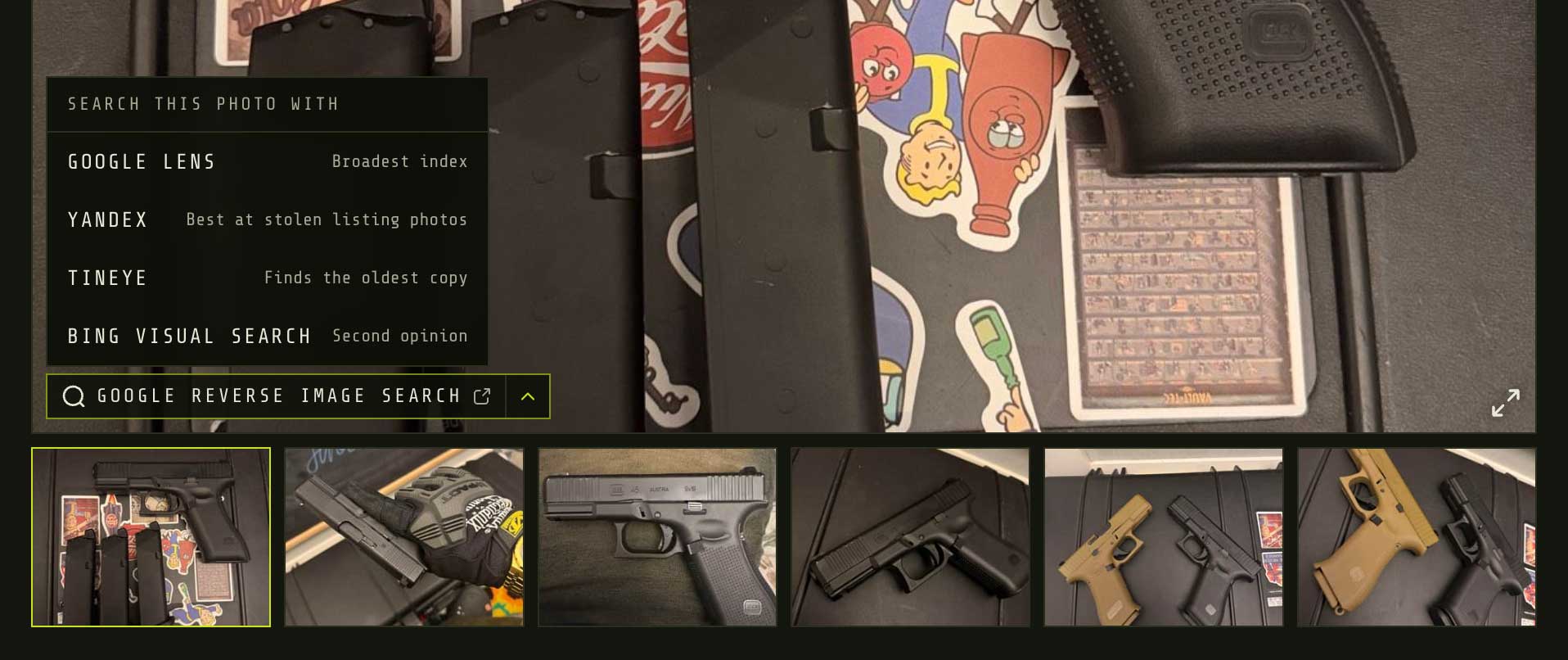
Open a listing and a small search pill sits on the photo. Tap it to run that photo through Google Lens, or tap the chevron for Yandex, TinEye or Bing. It works on photos other traders send you in messages too.
A scam listing usually uses someone else's photos, so this is the single fastest check you can run before you send anyone money. TradeSoft already checks uploaded photos against the web automatically and flags what it finds, but that check does not catch everything, and people have found stolen photos in seconds by searching manually. If you do find one, here is how to report a user, listing or message.
Worth knowing before you use it. TradeSoft does not run the search for you: tapping hands that photo to the search engine you chose, in your browser, and that engine may keep a copy of it. That includes a photo someone sent you in a message. It is one photo at a time, the one on screen, because none of the search engines accept more than one image per search. You need to be signed in, and the button is hidden on your own listings, on photos marked STOCK IMAGE, and on listings our own check has already flagged, which show their own notice instead.
Sort listings the way you want
Browse has a sort control next to the results count, with ten orders: Default (Newest to Oldest), Oldest to Newest, Price: Ascending, Price: Descending, Condition: New to Used, Condition: Used to New, Alphabetical: Ascending, Alphabetical: Descending, Most Viewed and Closing Soon. Your choice sticks, the same way your filters do.
Filters cut the list down. Sorting decides what you see first, which is what actually matters when you are after the cheapest one, or the one about to expire. Listings with no price sink to the bottom of both price sorts rather than leading them.

Graveyard: a category for broken gear
Graveyard is a new top level category, sitting last in the list when you create a listing. It is for broken replicas and gear sold for parts or repair.
It works differently to the others on purpose. There are no subcategories to pick, and it never asks for a condition, because "used" tells a buyer nothing about something that does not work. Graveyard listings carry a GRAVEYARD badge on the card where the condition tag would be, and no condition is recorded for them at all.
Broken kit was going into Other > Broken Items, buried inside a catch all category nobody browses. Parts hunters can now find it. That old subcategory is no longer offered when you create a listing, but existing listings sitting in it were left where they are and stay findable.
Links in descriptions are tappable
Web addresses in listing descriptions, questions and answers, and club and event descriptions are now links. Tap one and TradeSoft tells you which site it opens before handing you to your browser, so you no longer have to retype a link by hand and you get a chance to read the address before you leave.
Only addresses starting http://,
https:// or www. are linked. A bare
domain like shop.co.nz is not, deliberately: airsoft descriptions
are full of things like "3.5kg" and "M4.SOPMOD" that would
otherwise turn into nonsense links.
Copy text off a listing
Long press a listing title, its make and model line, its description or a spec value and you can select part of it and copy. Questions and answers work the same way. Checking a model number elsewhere used to mean retyping it from memory. Now you copy it.
One exception: a block that contains a link can only be copied whole, because tapping the link takes priority.
A reminder if push notifications are off
If push notifications are switched off, the app will occasionally offer to turn them on, with Not now and Don't ask again.
Push was only ever offered once, during sign up. Anyone who tapped no, or who joined before push existed, was silently missing messages, questions on their listings and wishlist alerts with no way of knowing.
The prompt appears at most once every fourteen days, and never in the first day after you install an update. Don't ask again is permanent for your account, although switching push on from Account > Push Notifications brings the reminder back if permission is later removed at the device level. If you previously denied push at the device level, the prompt sends you to your device settings, because the system will not ask twice. Our guide to managing push notifications covers what actually lands on your phone.