
Wishlists tell you when gear you want gets listed
Save what you are hunting for, by keyword, category, region, price or condition, and TradeSoft alerts you the moment a matching item is listed. Your Watchlist saves listings that already exist. A wishlist watches for ones that do not.
There is nothing you have to do. If you never create a wishlist, nothing about TradeSoft changes for you. But if you are hunting for something specific and it is not on the site yet, you can now describe it once and let us watch for it.
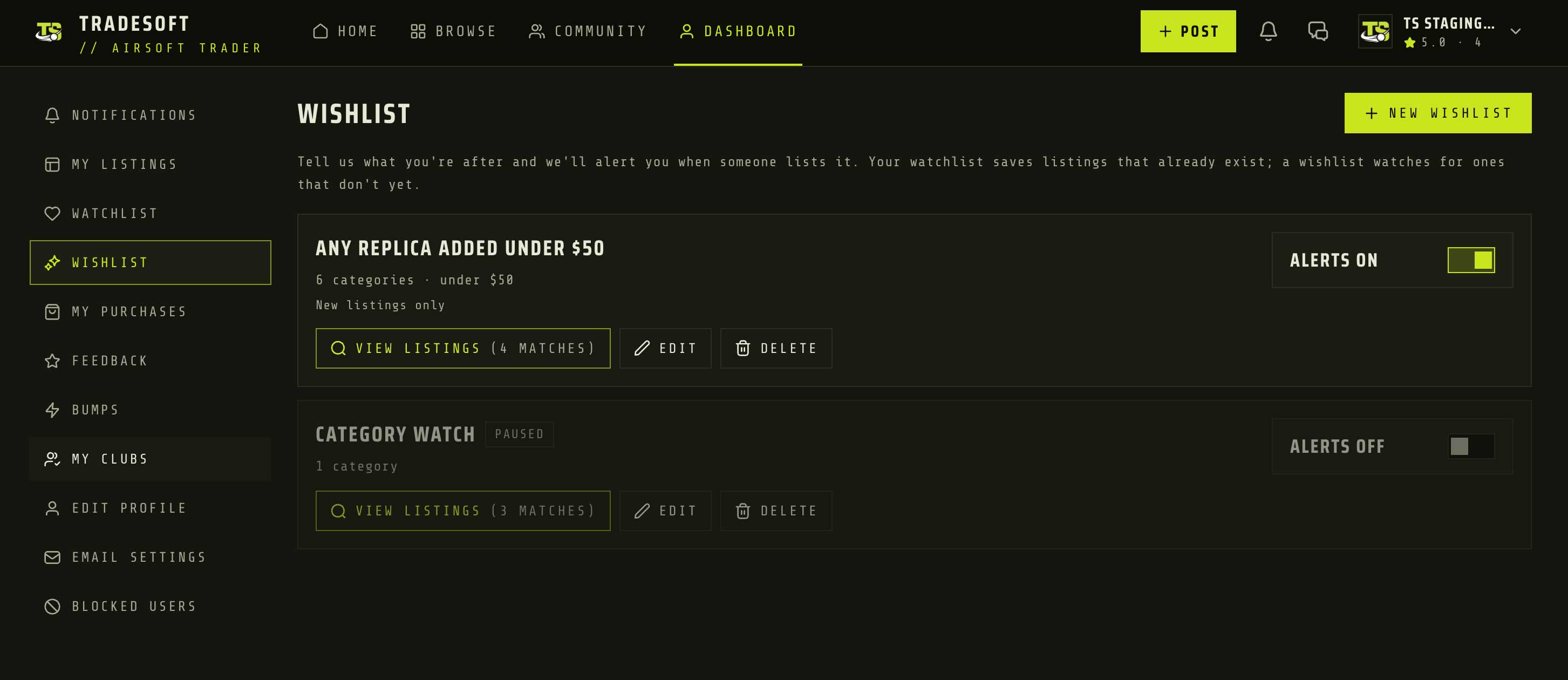
Saved wishlists in your dashboard
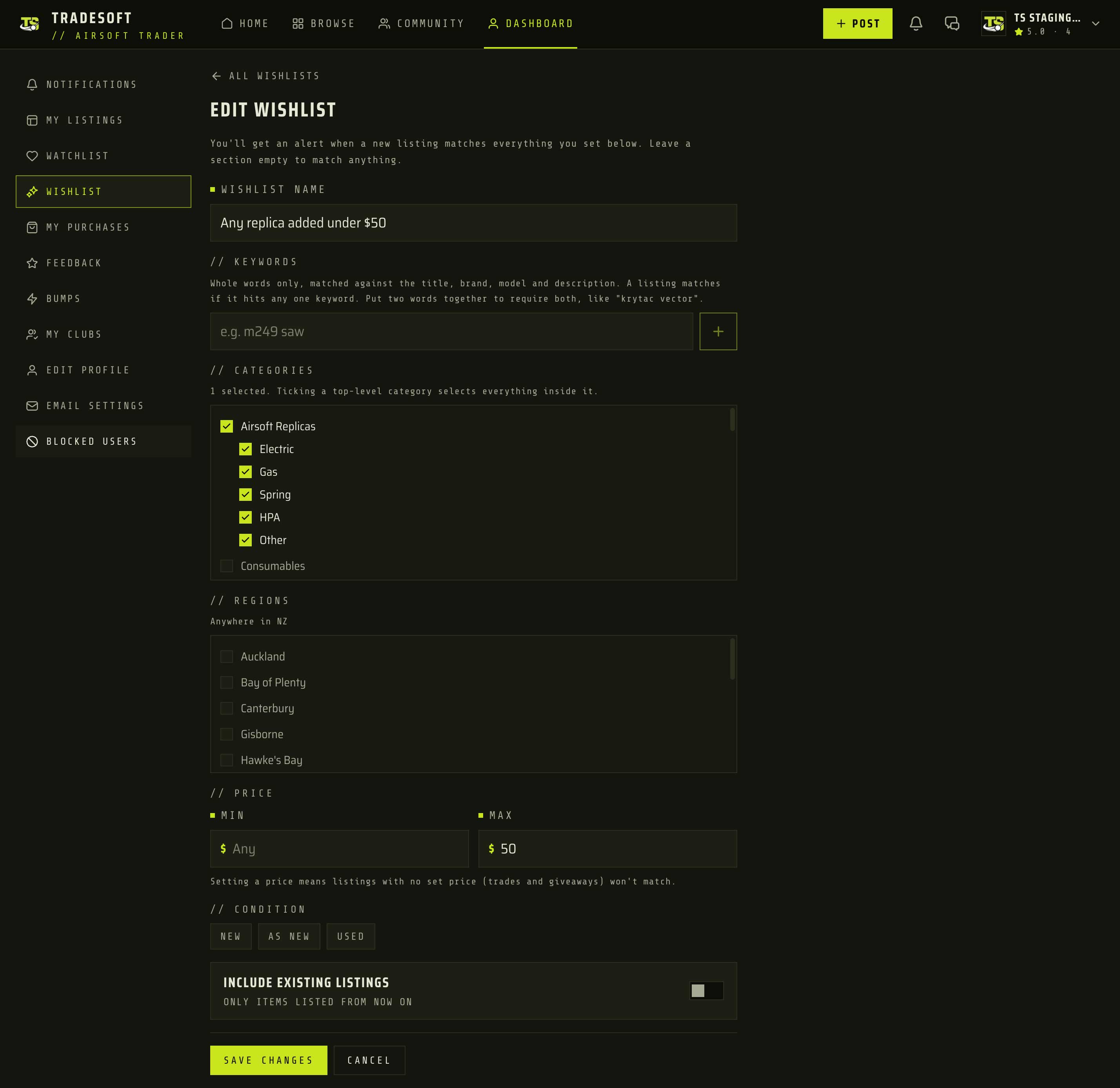
Wishlist is a new area in your dashboard, sitting next to your Watchlist. Select New wishlist, give it a name, then describe what you are after using any combination of keywords, categories, regions, towns, a price range and condition.
Every section you fill in narrows the search. Leave a section empty and it matches anything. Ticking a top level category selects everything inside it, and picking a region selects all of its towns, so you can see exactly what is covered rather than guessing.
Your Watchlist already handles "tell me if this specific listing gets cheaper". It cannot help with gear nobody has listed yet. Until now that meant checking Browse again and again and hoping to catch something early. A wishlist does the checking for you.
Alerts when something matches
When a new listing matches, you get an in-app notification straight away, and a push notification if you have the mobile app. The alert names the item, its price and its town, plus every wishlist it matched.
If one listing matches several of your wishlists, you still get one alert, not one per wishlist.
Good gear sells fast, and being told within moments is the difference between getting it and reading about it. Sending one alert per listing rather than one per wishlist means overlapping wishlists never turn into repeated notifications for the same item.
We highly recommend enabling push-notifications in the mobile app if you have not already
Keywords match whole words
Keyword matching looks at a listing's title, brand, model and description. It matches whole words only, so "vector" finds a Vector and does not drag in unrelated listings that happen to contain those letters. Common word endings are handled, so "boots" also finds "boot".
Add several keywords and a listing matching any one of them counts. Put two words together, like "krytac vector", and a listing has to contain both.
Loose matching produces alerts you do not want, and after a few of those you stop reading them.
A daily email round-up
Once a day at 8pm, you get a single email listing what matched across all of your wishlists that day, with the wishlist each item hit. It shows up to five items and tells you the true total, with a link through to your wishlists for the rest.
Notifications are for reacting now. The email is for catching up on a day you were not looking. It is one email covering everything, not one per wishlist, and it is capped at five items so a broad wishlist cannot fill your inbox. Turn it off under Dashboard > Email Settings, using the Wishlist matches row.

Save a search you have already run
Filter or search on Browse and a Save as wishlist button appears. It carries your current search and filters into a new wishlist, ready to name.
The moment you notice something is not listed is usually while you are searching for it. This turns that search into a standing alert without setting it up twice.
Pause, edit or delete
Each wishlist has an Alerts on and Alerts off switch, plus View listings, Edit and Delete. View listings shows everything matching right now, and a New badge appears when something has matched since you last looked.
Pausing is for a hunt you have finished but might resume, so you keep the wishlist and its results without the alerts.
Worth knowing
- You can save up to 10 wishlists. Delete one to add another. That is a fixed limit, not something you set.
- Wishlists only match items for sale. Want to Buy listings are ignored, because a wishlist is for buying.
- Your own listings never alert you.
- Include existing listings is on when you create a wishlist. Turn it off and View listings only shows items listed from that point on. Either way, you are never alerted about listings that already existed. Alerts only ever fire for genuinely new listings.
- Editing a wishlist does not alert you about older listings. They appear in View listings immediately, but only new listings trigger alerts.
- Deleting a wishlist is permanent, and it stops future alerts. Alerts you have already received stay in your notifications and still link to the listing.
- Wishlist push notifications cannot be switched off in the mobile app yet. The email round-up can be turned off in the web app today. Mobile controls come with a future app update.
- Relisted items can alert you again, because they are available again.
Your Watchlist is for listings that already exist: it tells you when one of them drops in price. A wishlist is for the gear nobody has listed yet. Both jobs are worth doing, so both stay. If you want to check what else lands on your phone, the guide to managing push notifications covers the rest.