
TradeSoft 1.5.5: Club events in the app and QR sign-ups
Club managers can now create, edit, cancel and copy events from the app, and add players on game day by scanning a QR code. Also a Paste button for six-digit codes, and feeds that keep your place.
Where you can get it
Version 1.5.5 is out now on the App Store for iOS and on Google Play for Android. Everything in this post is in the mobile app. Update the app and you have it all.
This post also covers 1.5.4. On Android, 1.5.5 is the first release since 1.5.3, so you get both at once.
Most of this release is for club managers. QR sign-ups involve players too, since they show the code, and the Paste button and the feed fix are for everyone. Nothing changes in the web app, and managers have nothing to set up.
Sign players up on game day with a QR code
Players can already join a club by email invite. That works when you are at a computer. It is slow at the sign-in table, where you have to type an address, wait, then chase the player to accept.
Now it takes a few seconds:
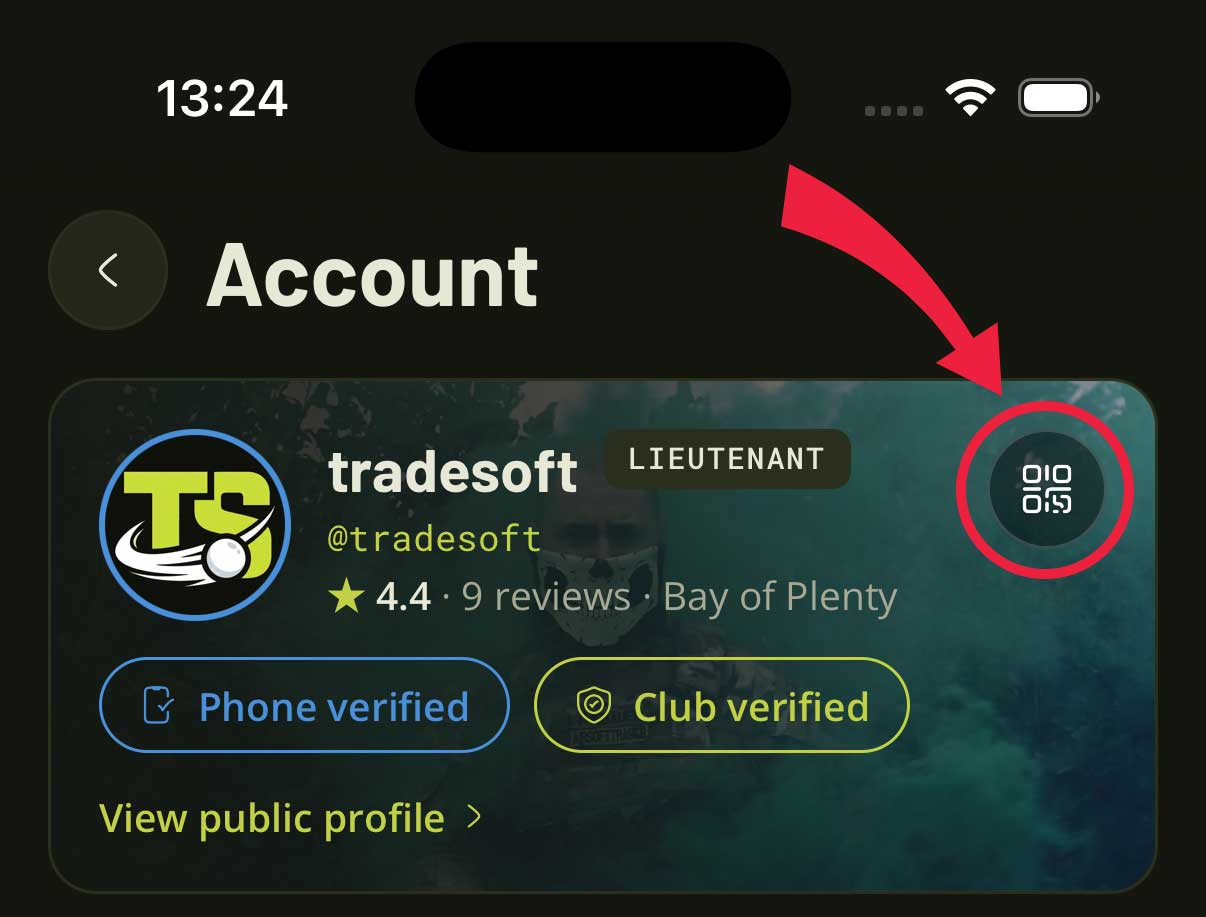
- The player opens Account in the app and taps the QR code button on their profile card. This opens their Club QR code.
- On your phone, go to Account > Club management, pick your club, open Manage members, tap +, then Scan QR code.
- Point it at their screen, check the name, and tap Add to club.
They are a member, with nothing to accept. Their screen changes to Joined, and they get a notification. Tap Scan another for the next player in the queue.
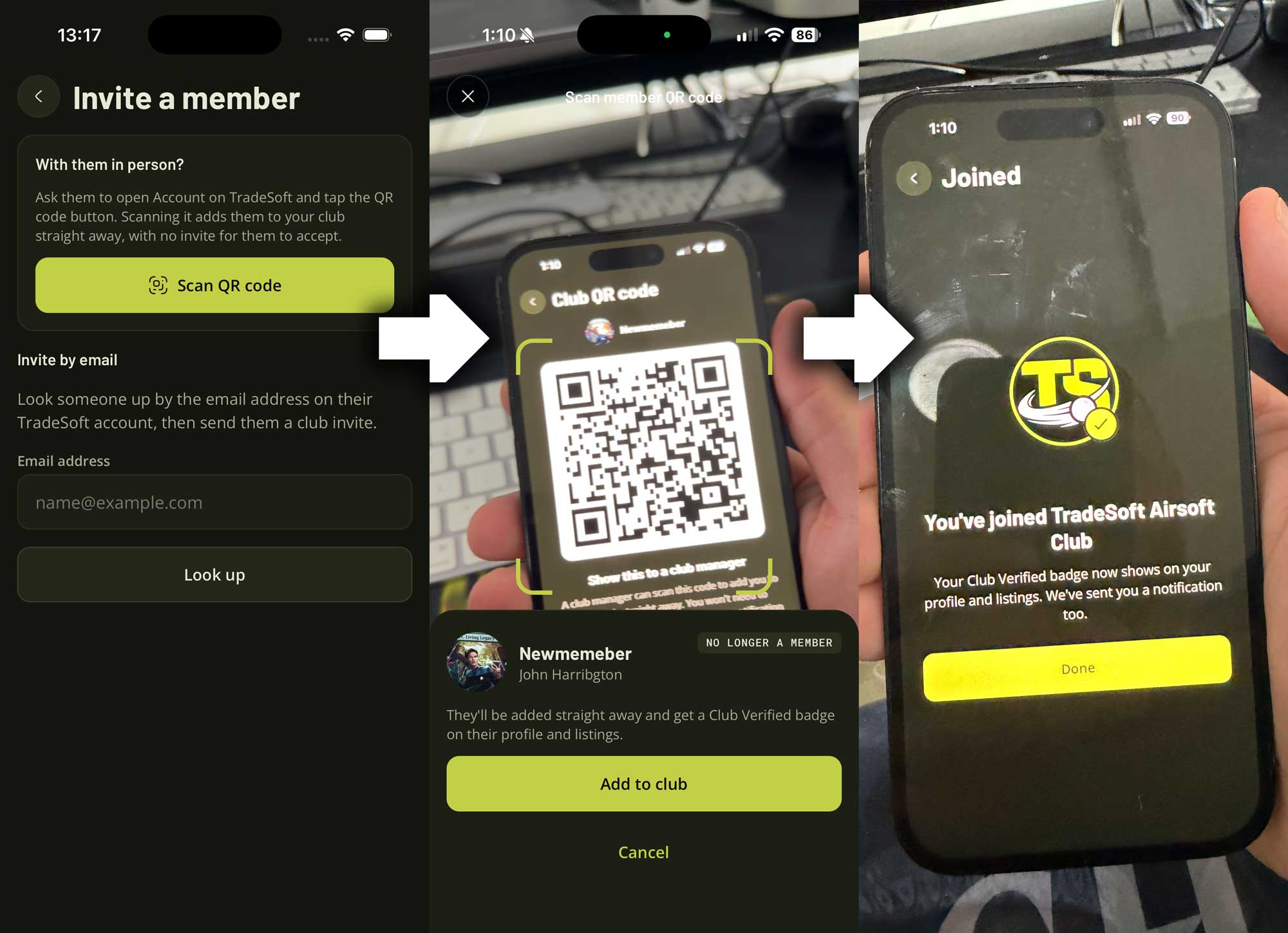
The player showing you their code is their way of saying yes, so there is no invite step. They get their Club Verified badge on the spot.
Both phones need an internet connection. The code changes every few minutes and is checked on the spot when you scan it, which is what keeps it secure. QR sign-ups only work in the app, on both sides, so the manager and the player both need the latest version.
Email invites still work, for anyone who isn’t standing in front of you, and for fields with no reception: send the invite before or after the game instead. Both sit on the Invite a member screen, under “With them in person?”: Scan QR code or Invite by email.
Run your club’s events from the app
Until now, club managers could only create and manage events on the website. This release brings those tools to the app’s club management, so you can run your events from your phone. Go to Account, find your club under Club management, and tap Events.
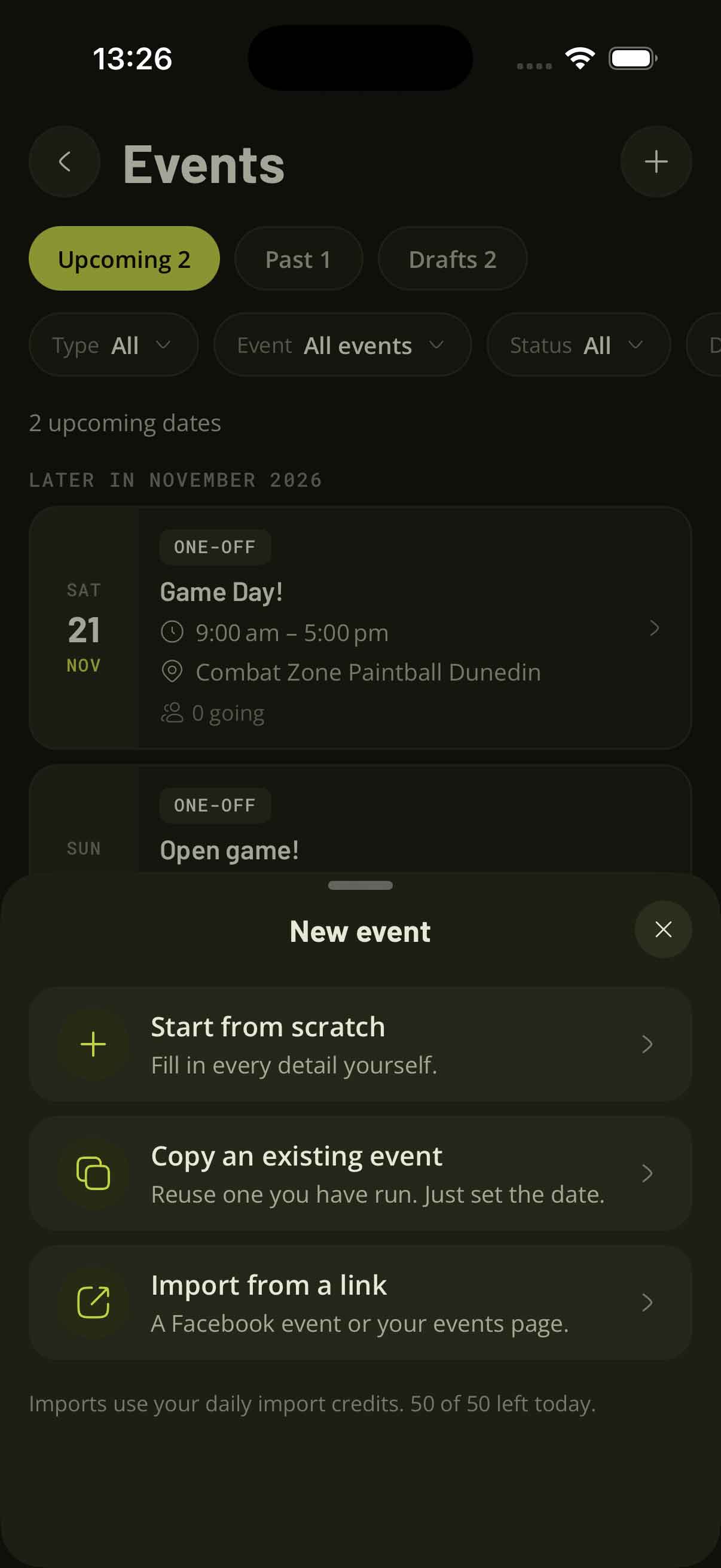
Your events sit in three tabs: Upcoming, Past and Drafts. A fourth tab, Imports, appears while you have an import in progress. Filter them by type, event, status or dates. Tap + to start a new event. You get three choices:
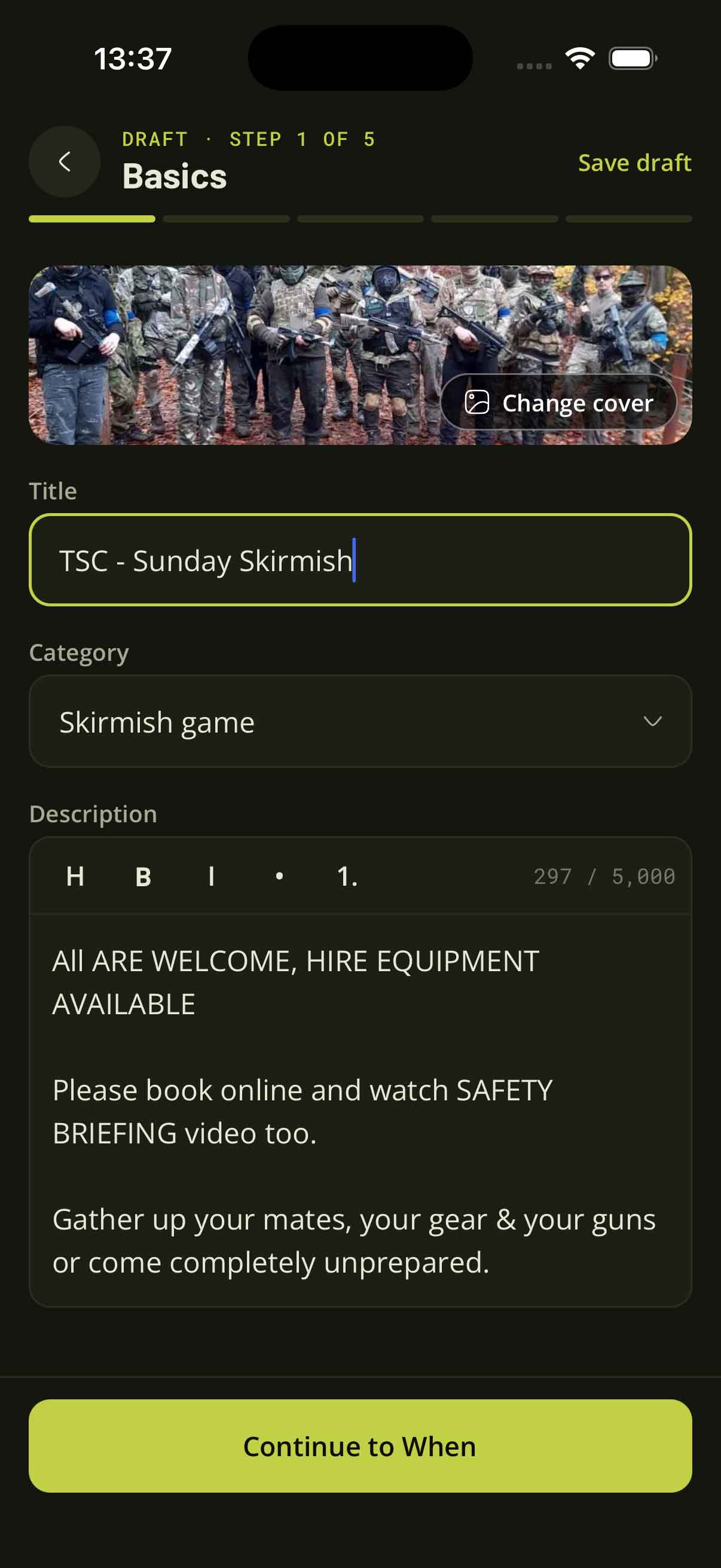
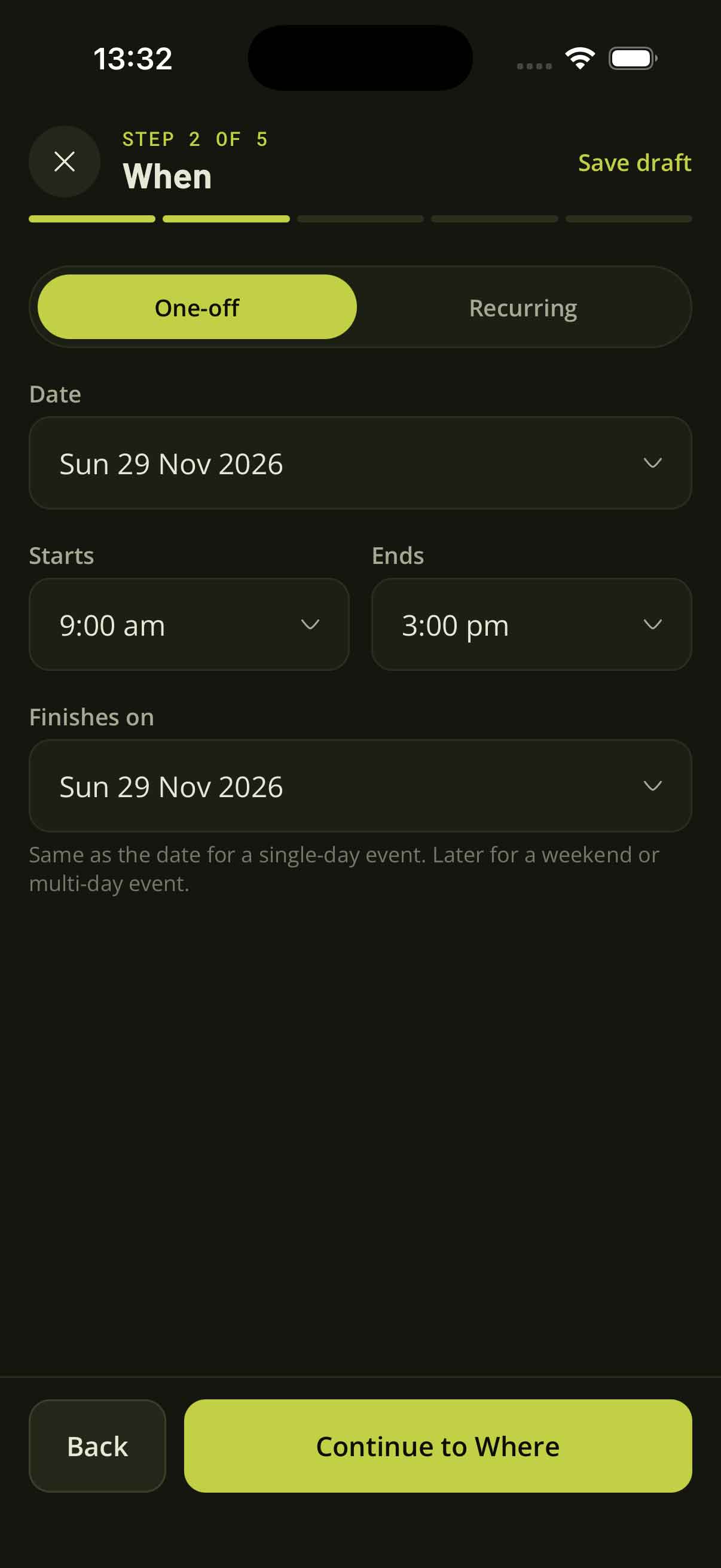
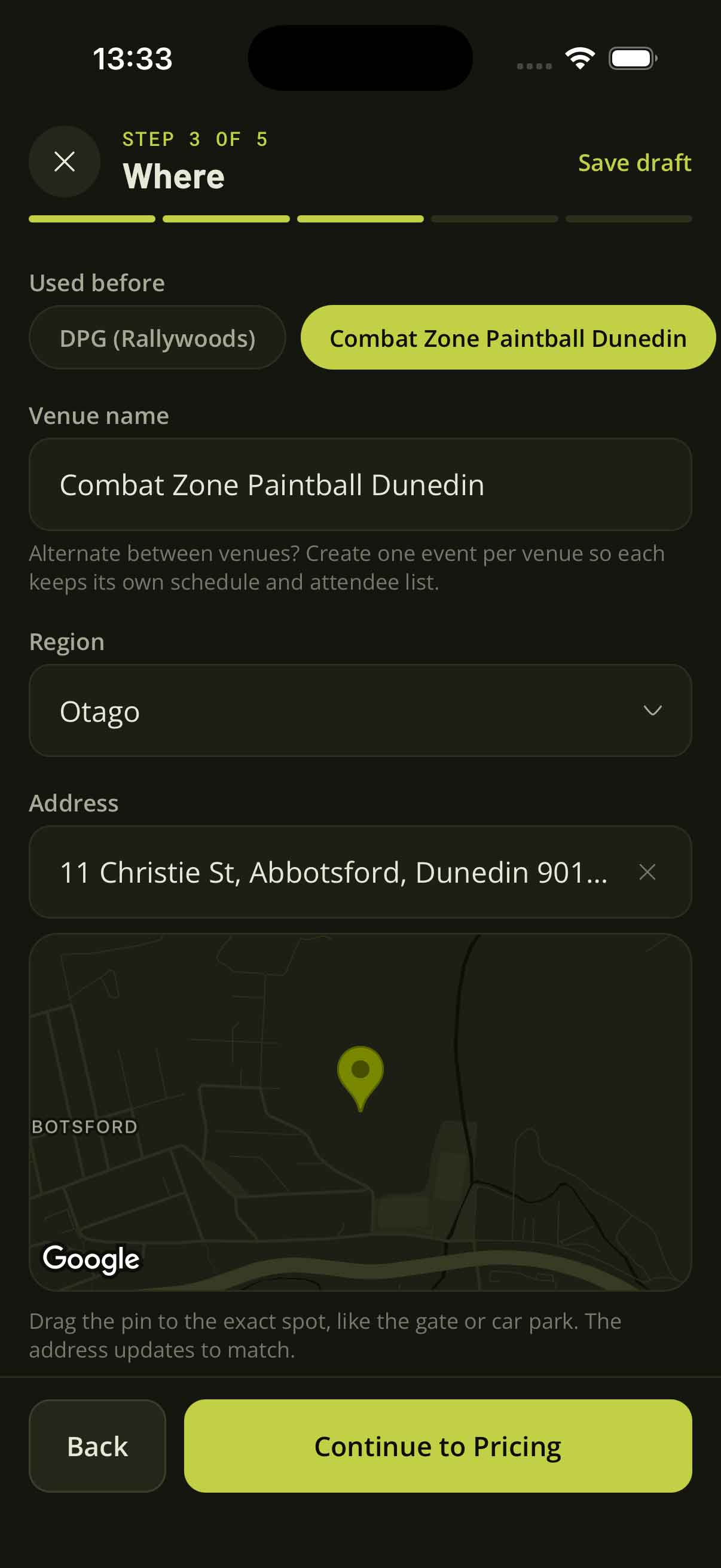
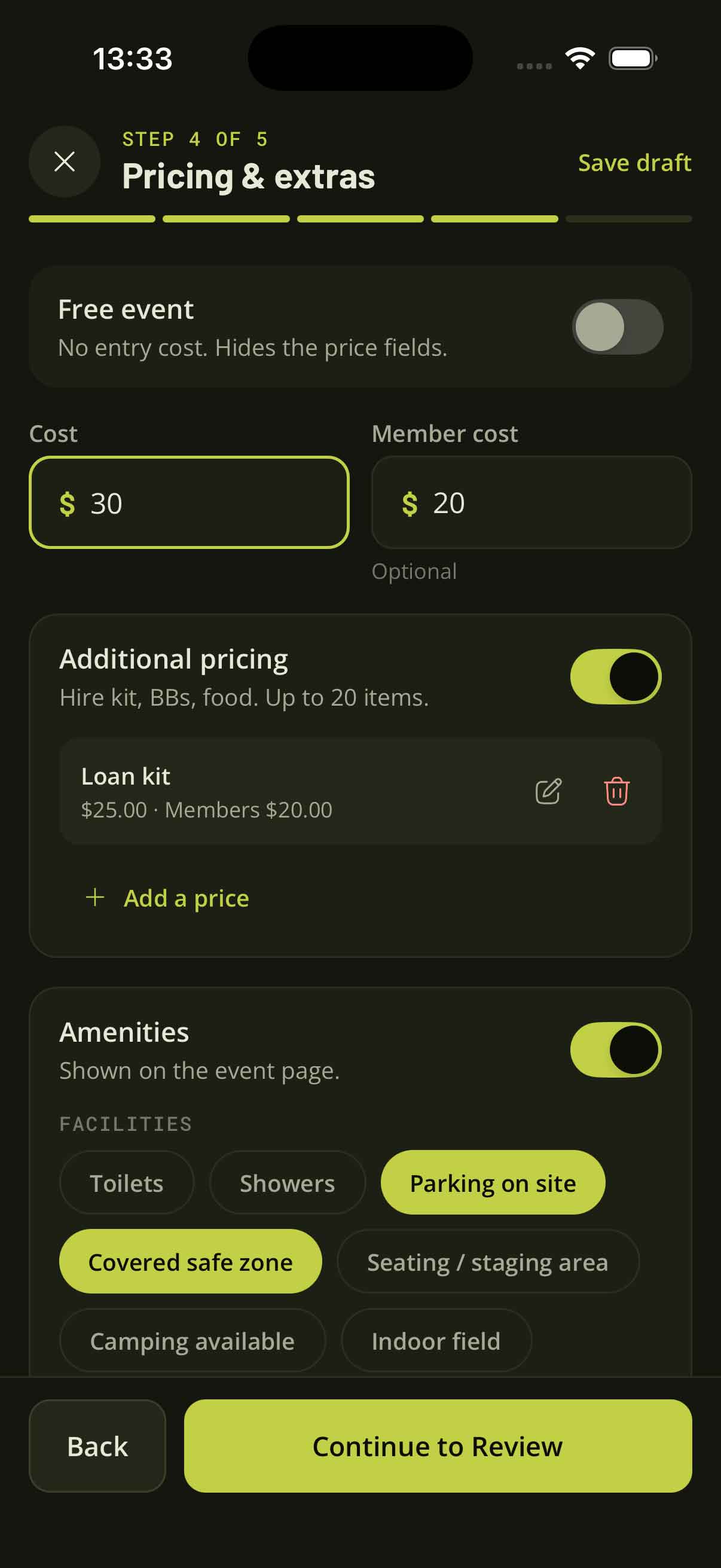
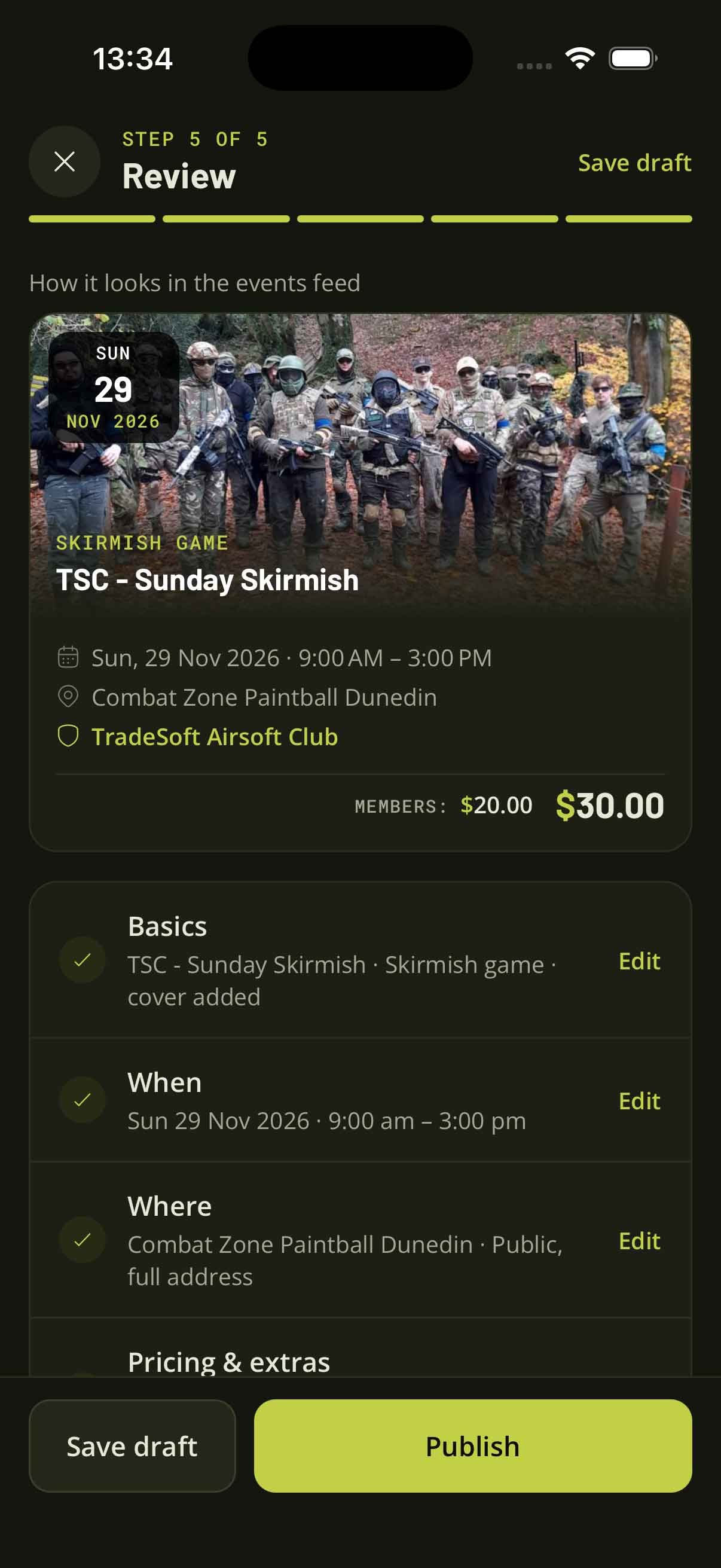
- Start from scratch takes you through five steps: Basics, When, Where, Pricing & extras, and Review. You can tap Save draft at any step and finish later.
- Copy an existing event clones one you have run before, with everything filled in except the date. Pick it, set the new date, change anything that is different this time, then publish it or save it as a draft. For a regular game, most of the work is already done.
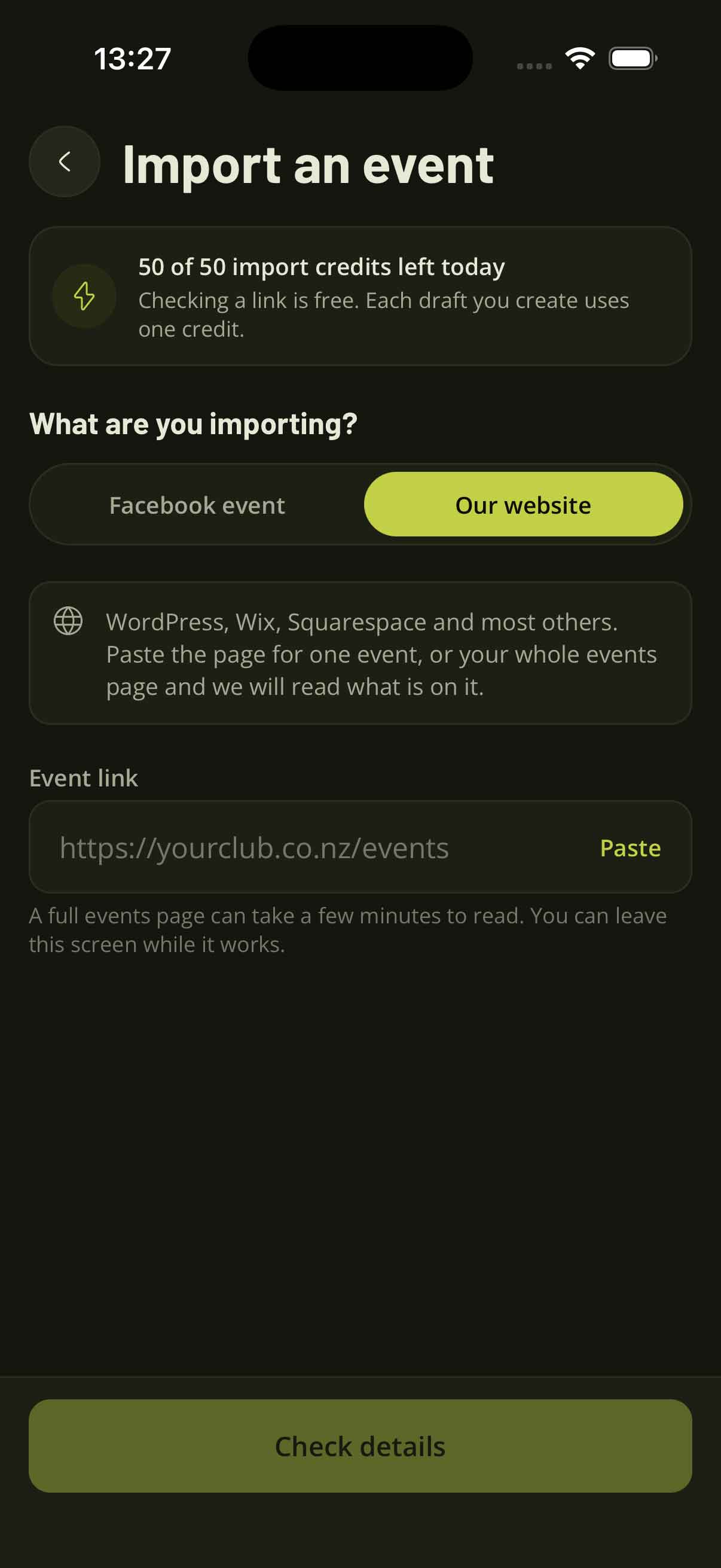
- Import from a link reads a public Facebook event or your club’s events page. You tick the dates you want, and each one becomes a draft for you to check. More on how imports work in import your events from a link.
Start from scratch shows your progress at the top of each step, with Save draft always in the corner. The last step, Review, shows how the event will look in the events feed, then you publish it or save it as a draft.

Tap any date to manage it. From there you can Edit this date, Cancel this date, Reactivate this date or Delete this date. You can also Copy to a new draft, open the View public page link, see the Attendees and answer Questions. The difference between cancelling and deleting, and how drafts work, is covered in event drafts, copy and delete.
Calling a game off on the morning? You can now do it from your phone, without getting to a computer first, and everyone who RSVP’d is told straight away.
Before this update, players could ask questions on an event in the app, but you had to answer them on the website. You can now tap Answer on a question, write your reply and tap Post answer from the app, so players get their answer sooner. Edit answer lets you change it later.
Who gets told when you edit
If people are going, the app tells you who will be notified before you save.
- A change to the date, start or finish time, venue, address or price notifies everyone going or maybe, automatically. Players need to know when the plan changes.
- If you only fix the title or description, you choose whether to notify people with the Notify attendees switch.
- Changes to member cost, additional pricing or amenities never notify anyone. More on those in member pricing and amenities.
For a recurring event, the edit sheet asks whether the change is for Only this date or This and all following dates.
Paste your code
Anywhere the app asks for a six-digit code, a Paste button now appears under the boxes when you have text copied. On iOS 16 and later it is the system’s own Paste button. Elsewhere it reads Paste code. You can also long-press the boxes to paste.
Club management asks for a two-factor code from your authenticator app. Copying it and switching back was easy, but typing six digits from memory was not.
Fixes
- Going back from a listing now keeps your place in the feed. Before, coming back could reload only the first page, so the list got shorter and you jumped back up. This covers Market, Home, Events, Discussions, The Armoury and My Listings. Pull down to refresh if you want to go back to the top.
Limits worth knowing
QR sign-ups
- The QR code only works while the player’s screen is open. It changes every few minutes, works once, and stops working when they close the screen. A photo or screenshot of a code is no use to anyone else, so you can’t keep one on a whiteboard, and a code printed on paper won’t work either.
- Both phones need an internet connection. With no reception at the field, use an email invite instead.
- Screenshots are blocked on the QR code screen, and the screen goes to full brightness so the code scans outdoors.
- The manager scans the player, not the other way round.
- Business accounts can’t be added to a club by QR.
- Too many failed scans in a short time pause the scanner for a few minutes. The message reads “Too many attempts”.
- The scanner needs camera access. If it was refused, the app offers Allow camera or Open Settings.
- A pending invite gets accepted by the scan. If the player already had an email invite waiting, the scan accepts it rather than sending a second one. Players who declined before, or who left, can be added again by scan.
Events
- Deleting is permanent, and nobody is told. Deleting a date can’t be undone and notifies no one. You type “delete” to confirm. If people have RSVP’d, the app suggests cancelling instead so they hear about it.
- Past dates can’t be edited, cancelled or deleted. You can still copy them into a new draft.
- Cancelled dates can’t be edited until you reactivate them. Reactivating sends everyone who had RSVP’d a “back on” notice.
- Moving a date only changes that one date, never the rest of the series.
- Imports use your club’s daily import credits. Checking a link is free, and each draft you create uses one credit. Credits reset at midnight. The New event sheet shows how many you have left today.
- Facebook imports only work for public events. If Facebook asks you to log in when you open the event in a private browser window, we can’t read it either.
- The app imports from a link only. Event embeds for your own website are still set up on the website.