
TradeSoft 1.5.0: A new look, new navigation and club management
Version 1.5.0 is a full redesign of the TradeSoft mobile app. Every screen is new, the tabs are reorganised around what you came to do, photos open in a proper full-screen viewer, and club managers can now run their members from their phone.
Where you can get it
Version 1.5.0 is for everyone using the TradeSoft mobile app. It is out now on the App Store for iOS and on Google Play for Android. The web app has not changed in this release.
Updating is the only thing you need to do. Your listings, messages, wishlists, feedback and club memberships all carry over untouched.
A new look across the whole app
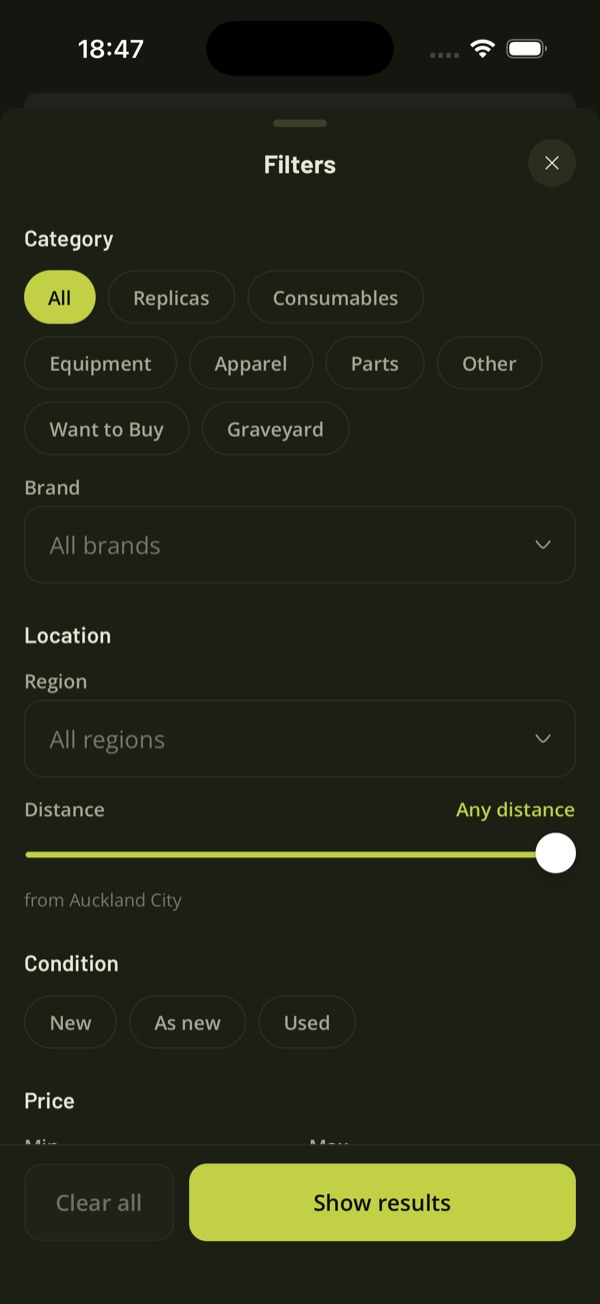
Every screen in the app has been redrawn: the marketplace, listings, messages, profiles, events, clubs, settings, sign-up and the sell flow. Photos are bigger, text is easier to read, and listing cards show the price, location, seller and rating at a glance. Buttons, lists and pop-up panels now look and behave the same on every screen.
The old app grew one feature at a time, and it showed. Screens did similar things in different ways. This release starts again from one consistent design, so once you have learnt one screen you know how the rest work.
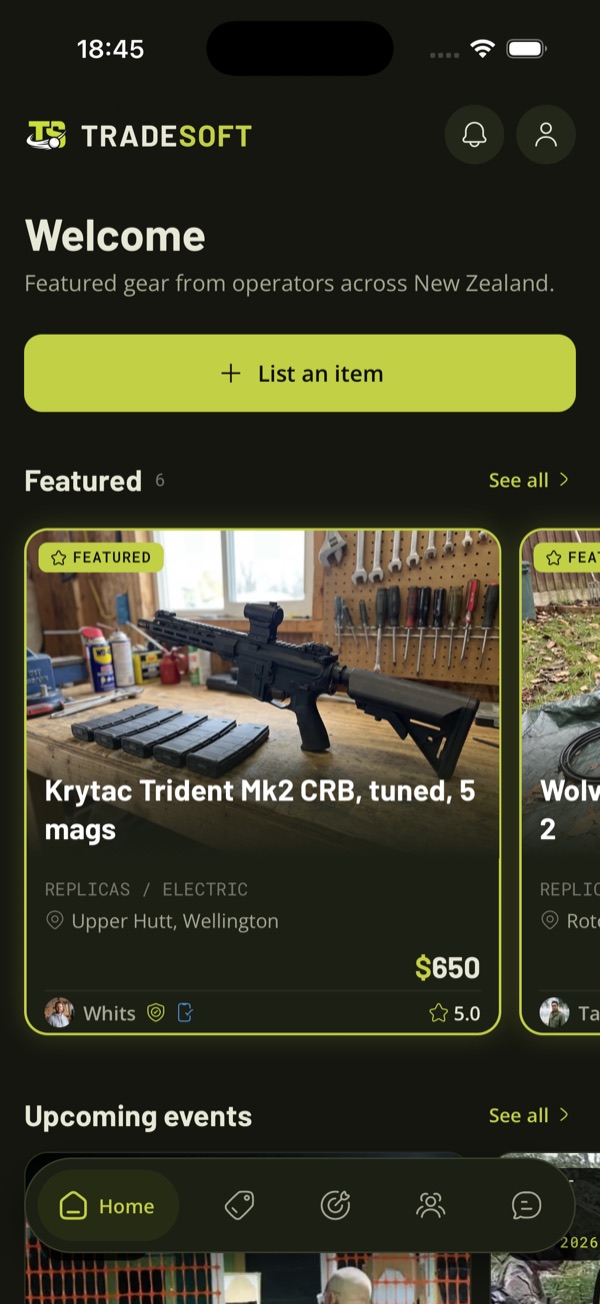
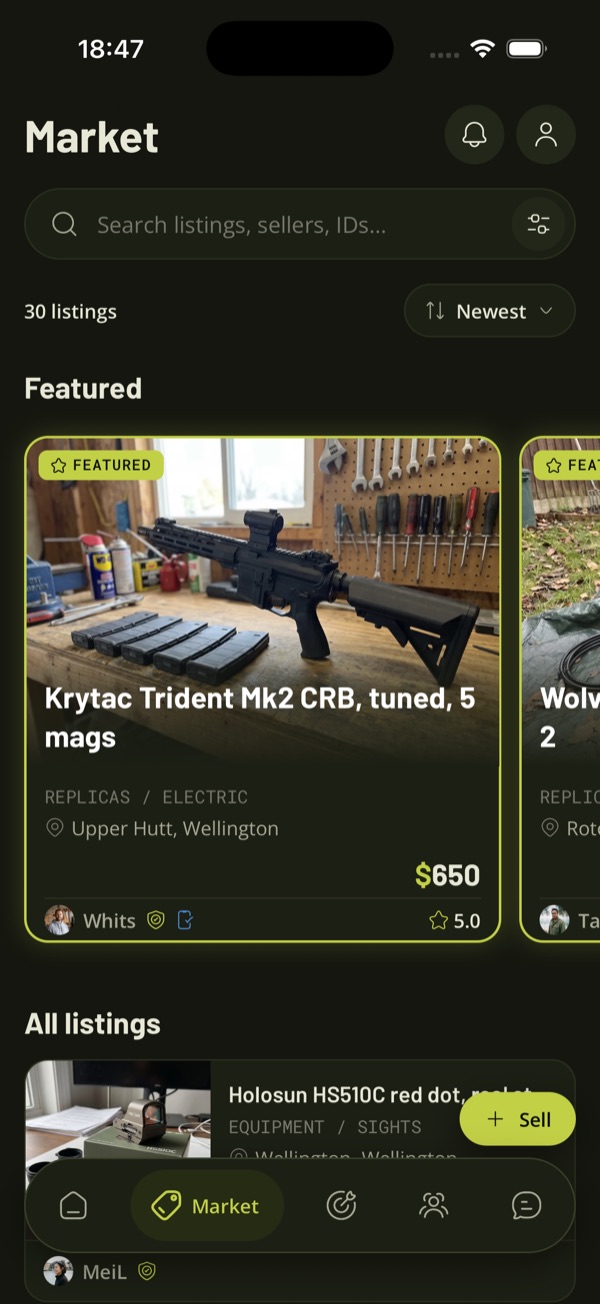
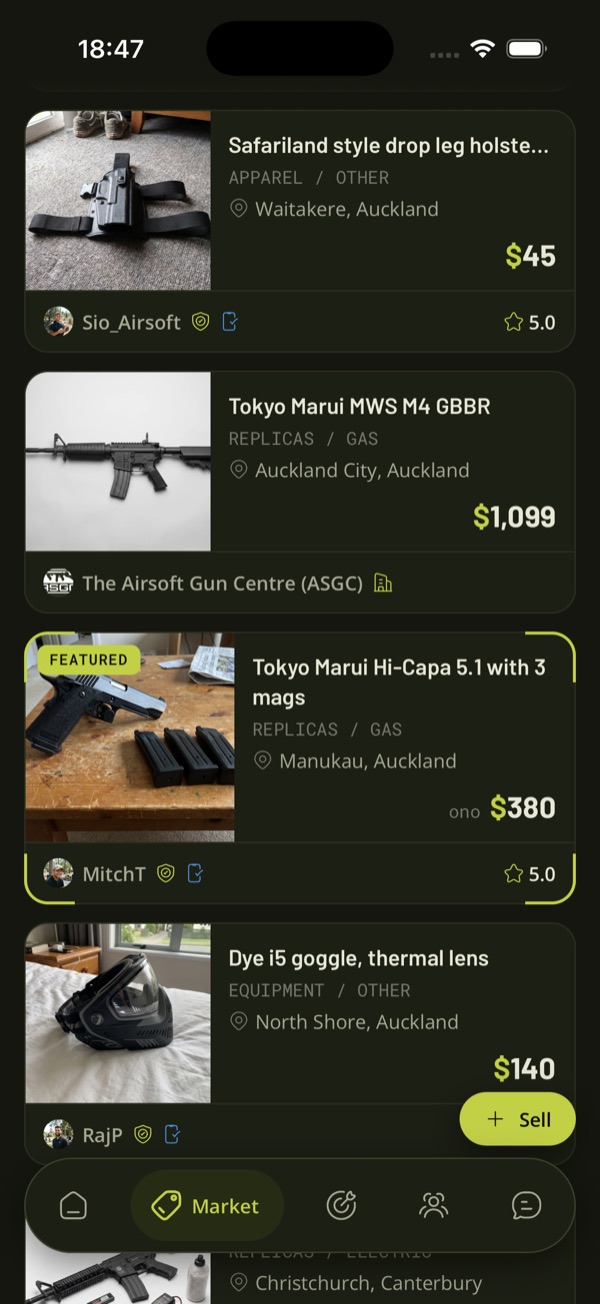
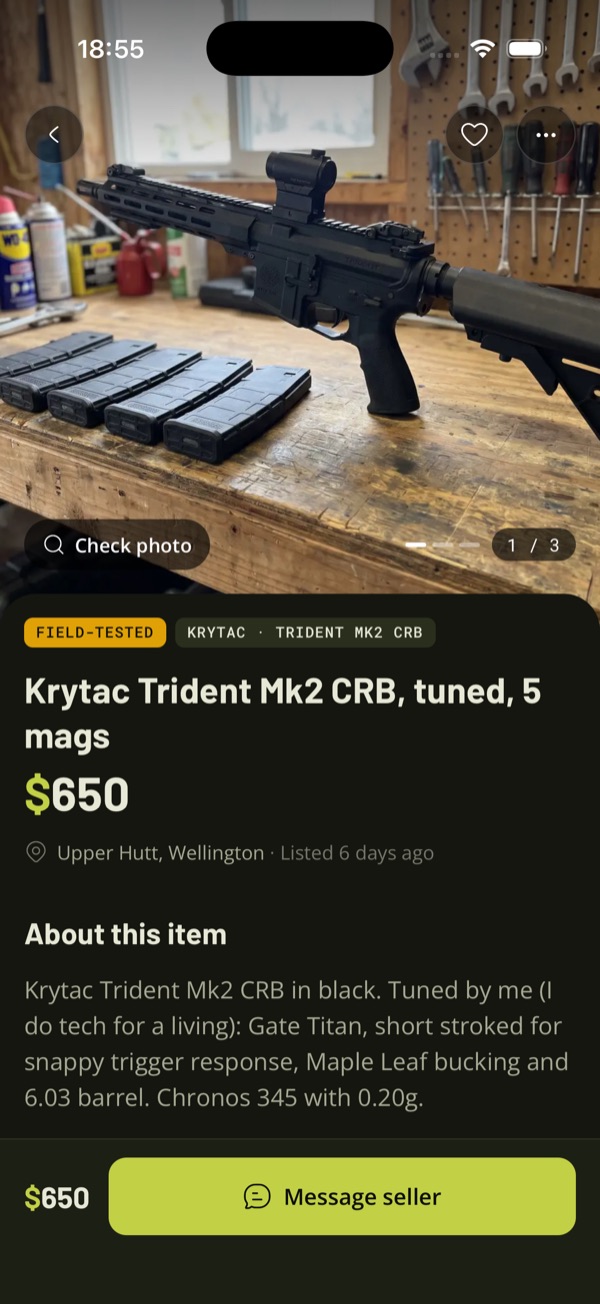
Five tabs, organised around what you came to do
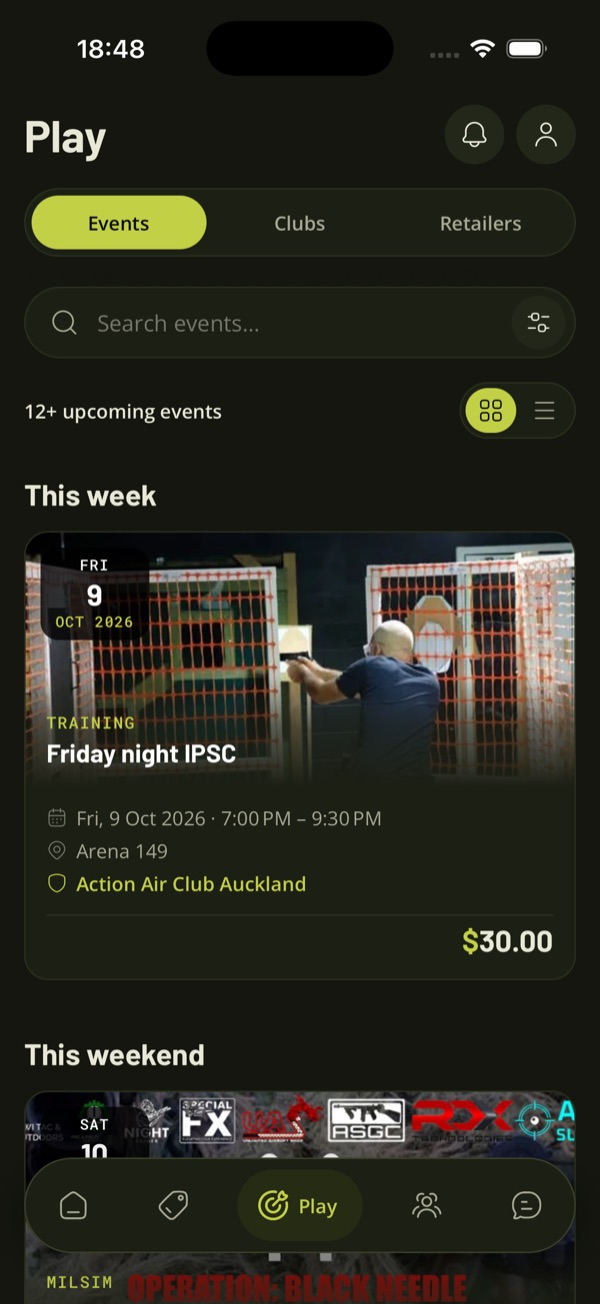
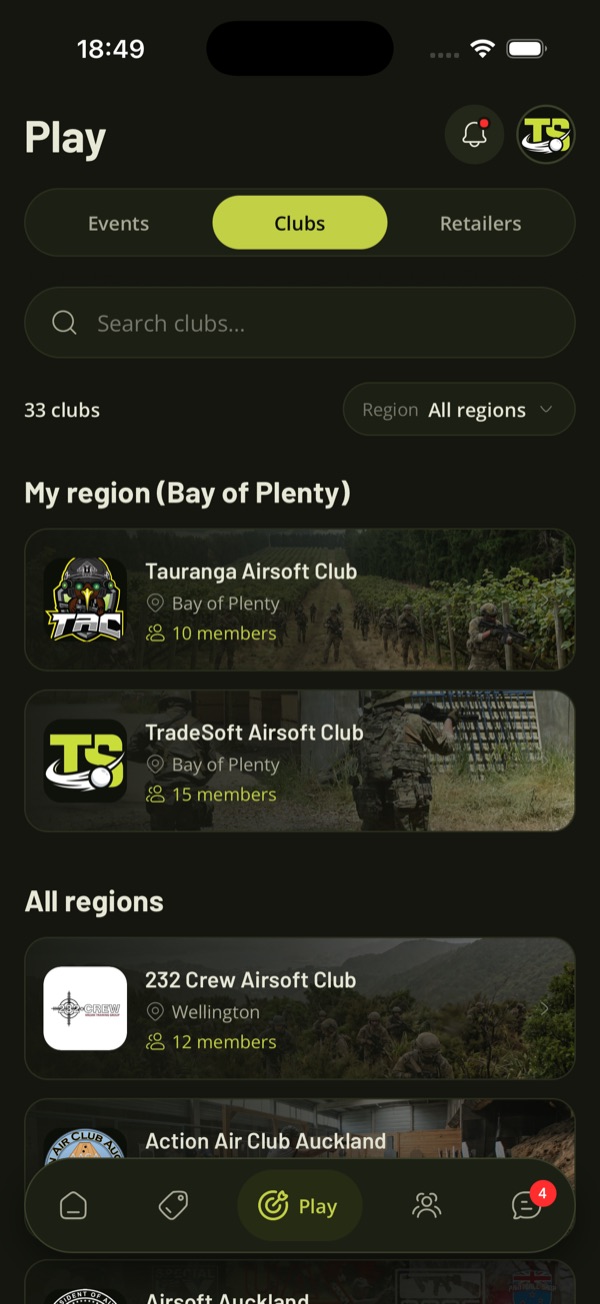
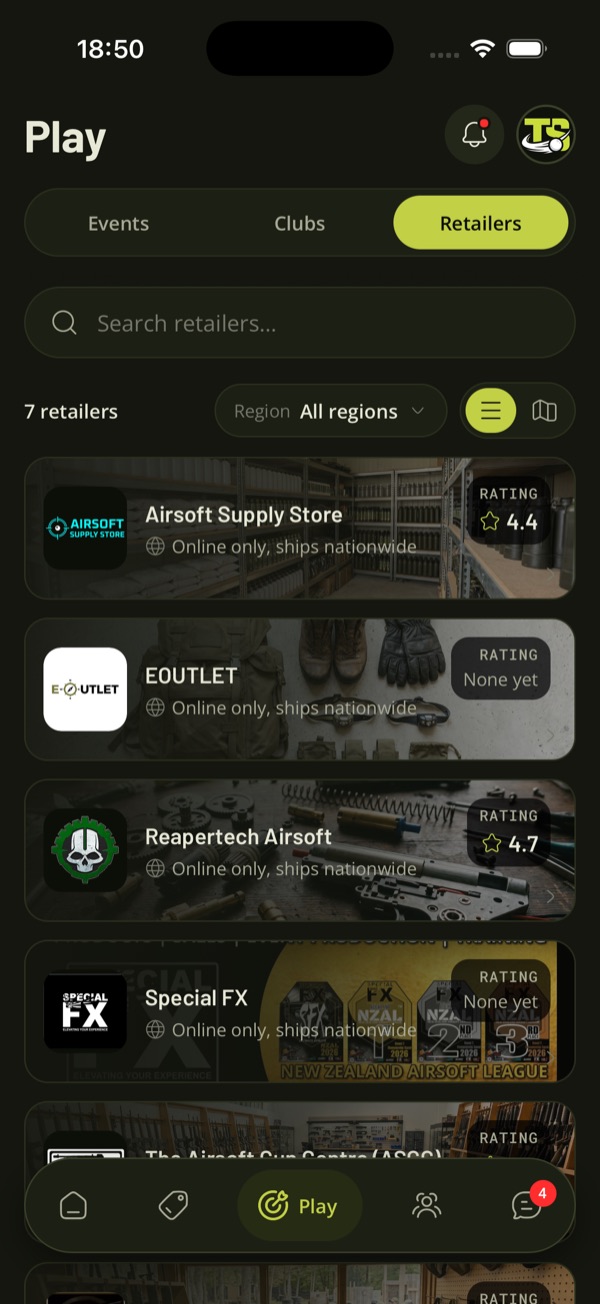
The tabs along the bottom are now Home, Market, Play, Community and Messages.
- Home shows featured listings, upcoming events and the latest discussions, with a List an item button at the top.
- Market is the full marketplace, with search, filters, sort and featured listings. The Sell button sits in the bottom corner.
- Play brings together Events, Clubs and Retailers. Clubs in your region show first, and retailers can be viewed as a list or on a map.
- Community holds Discussions, The Armoury and the Leaderboard.
Notifications and your account have moved to the icons at the top right of the main screens.
In 1.4.0, events, clubs, retailers, discussions, The Armoury and the leaderboard were all inside one Community tab, and Sell took up a tab of its own. Splitting them into Play and Community means the things you do on game day and the things you do between games each have their own home, and each is one tap away.
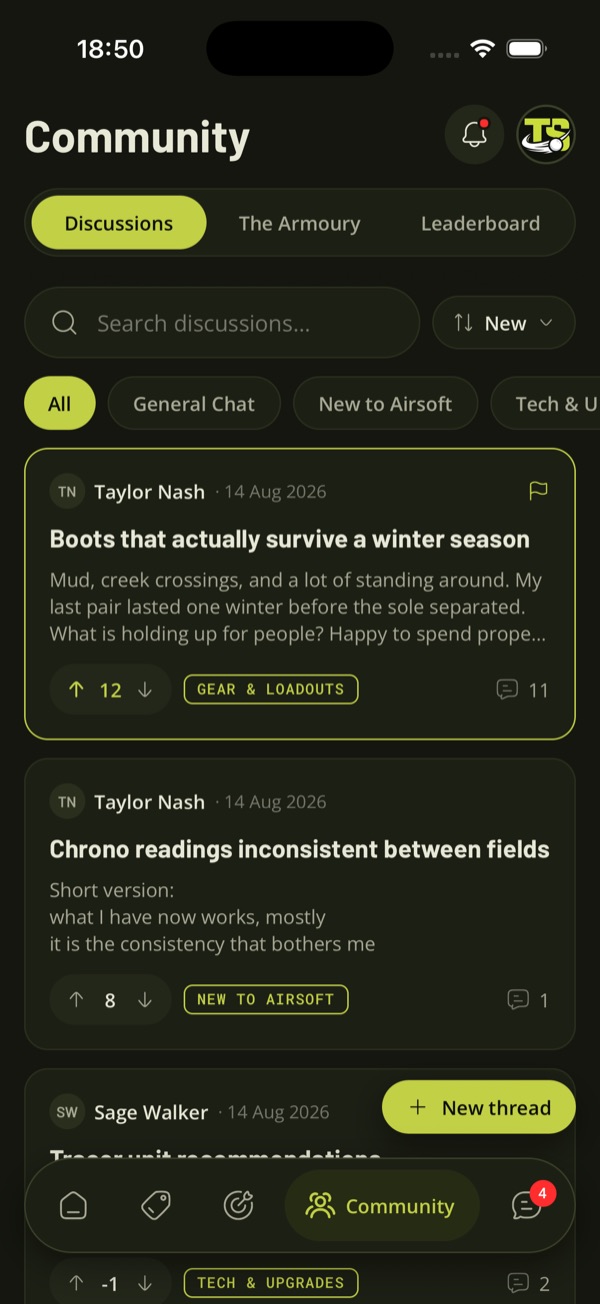
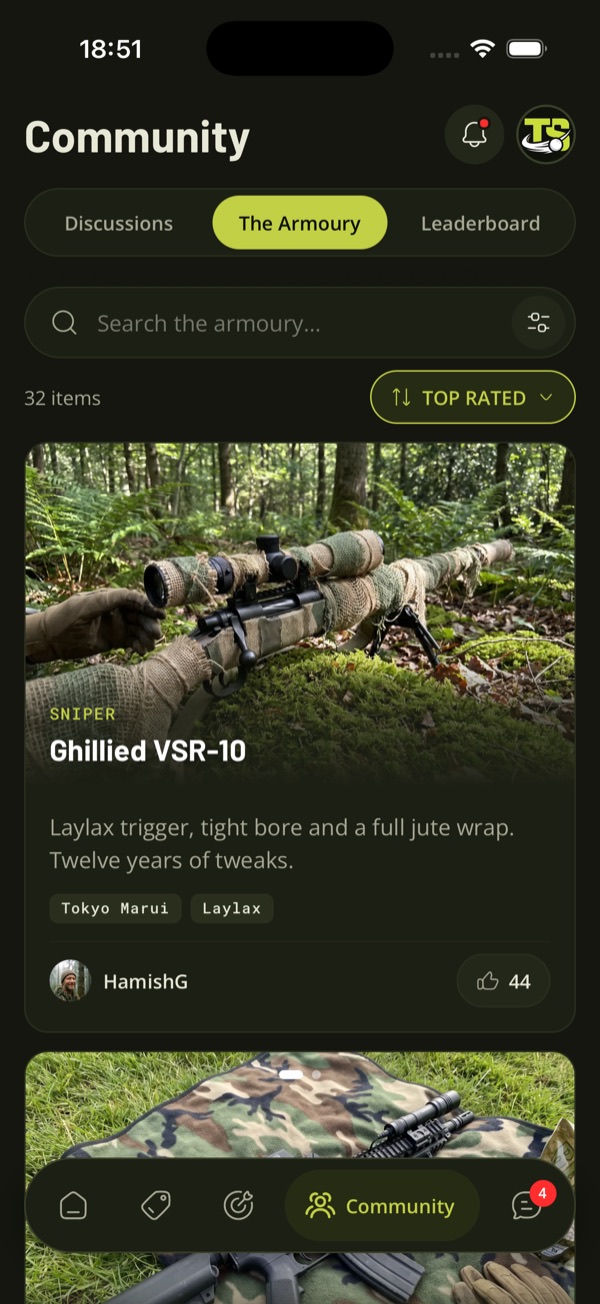
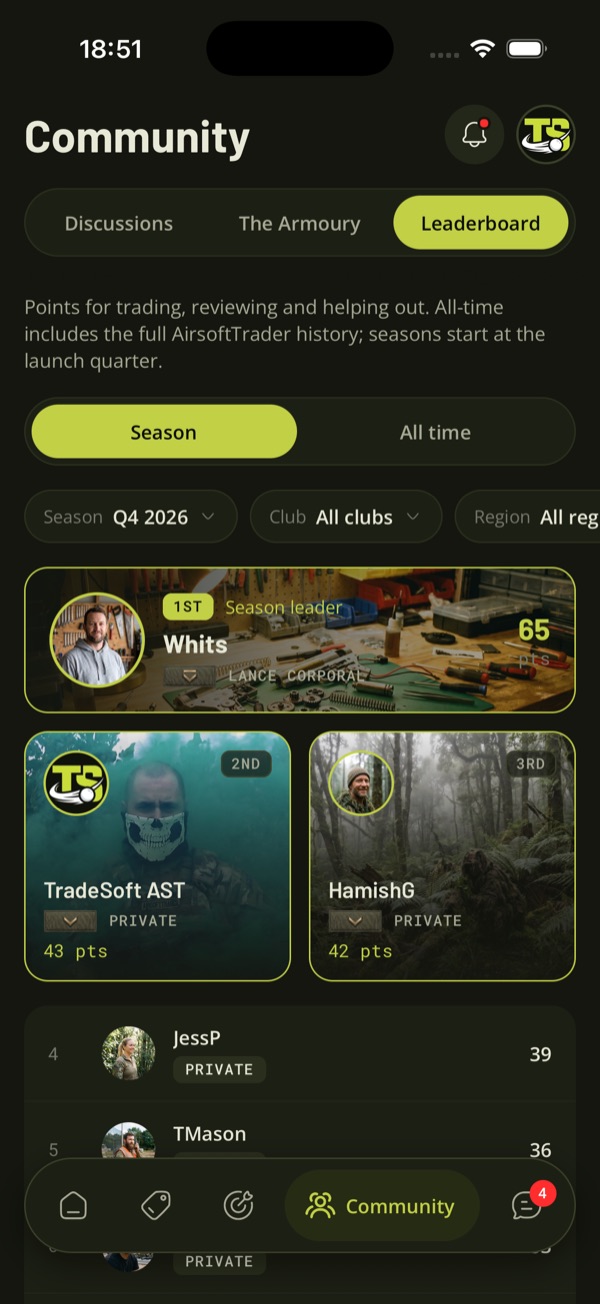
Photos that behave like your phone's own gallery
Tap any photo on a listing, in a message, on a profile or in The Armoury, and it opens full screen. From there you can:
- pinch to zoom in on the spot under your fingers
- double-tap to zoom to a point
- swipe to move between photos
- pull down to close.
Checking condition, serial numbers and wear is a big part of buying second-hand gear. The old viewer was slow and awkward to zoom. The new one responds the way the photo app on your phone does, and it loads the full-size photo once you zoom in, so the detail is there when you need it.
Rotate photos in The Armoury
When you add photos to an Armoury item, you can now rotate each one before you save.
Phones sometimes save a photo on its side. Before, the only fix was to edit the photo somewhere else and upload it again.
Club management in the app
If you manage a club, your account screen now has a Club management section with your club and four options: Edit club profile, Manage members, Events and Club settings. Your club's page also shows a Manage button that takes you straight there.
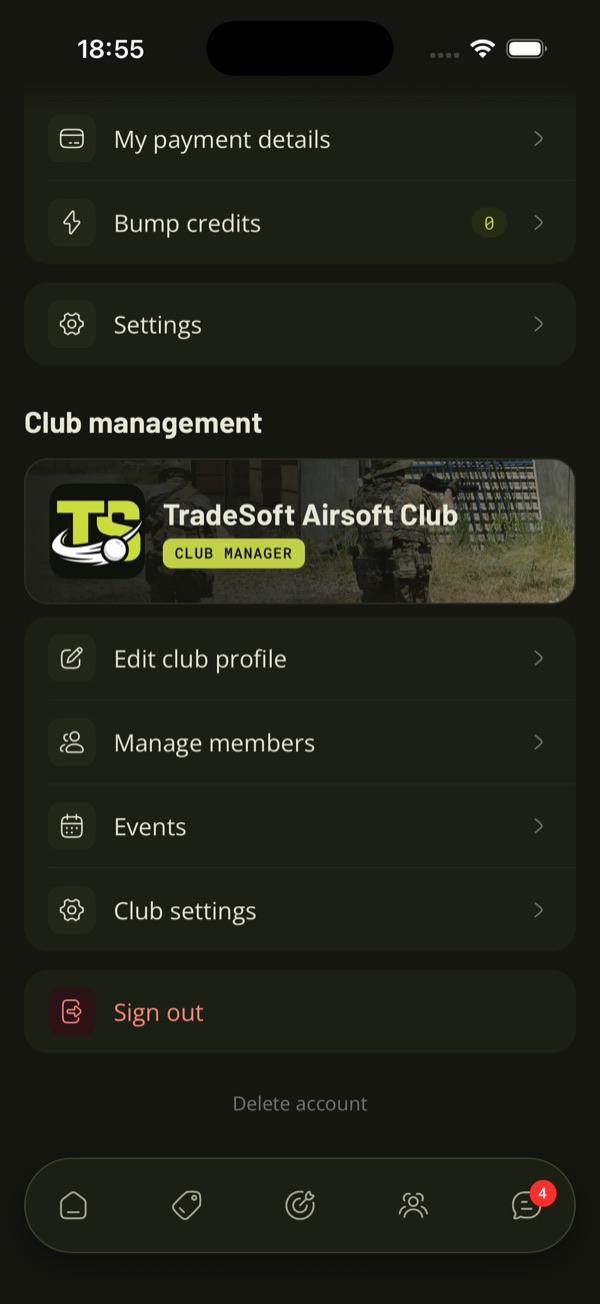
From your phone you can:
- invite a member by the email on their TradeSoft account
- see your Active and Pending members, cancel an invite, or remove a member
- update your club's cover image, description and contact details
- view your club's activity.
Until now, club management was on the website only, so inviting a member meant remembering to do it later at a computer. Now you can invite at the field:
- A player asks to be verified.
- You open Manage members, type the email on their TradeSoft account and tap Send club invite.
- They get a notification straight away and tap Accept.
- Their Club Verified badge appears on their profile and listings.
The whole thing takes about a minute, with both of you standing there.
Creating and editing events stays on the website for now. Events in the app has a link that opens your club's events on the website.
Club management in the app asks for a code from an authenticator app, such as Google Authenticator, Microsoft Authenticator or 1Password. You set it up once. After that, the app asks for a fresh code if you have not entered one for 48 hours. It never asks for a code anywhere else in TradeSoft. The Club Verified badge is the strongest trust signal on TradeSoft, so a lost or stolen phone must not be able to hand it out.
New to running a club on TradeSoft? Start with club management or the club management overview in the Help Centre.
A look around the rest of the app
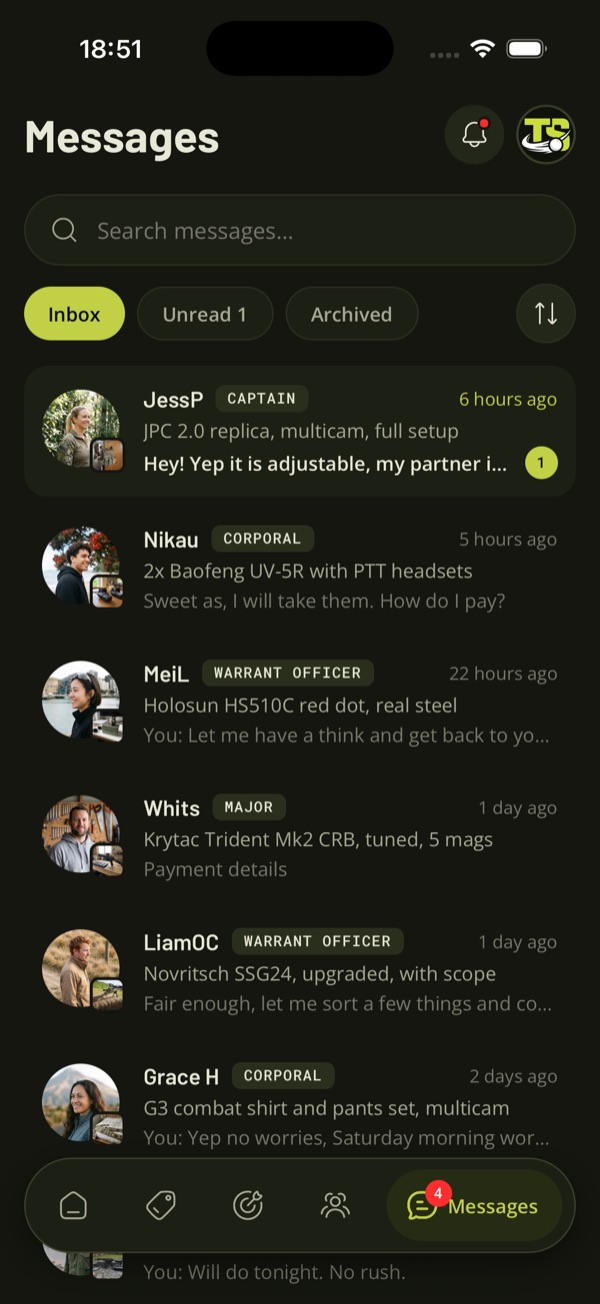
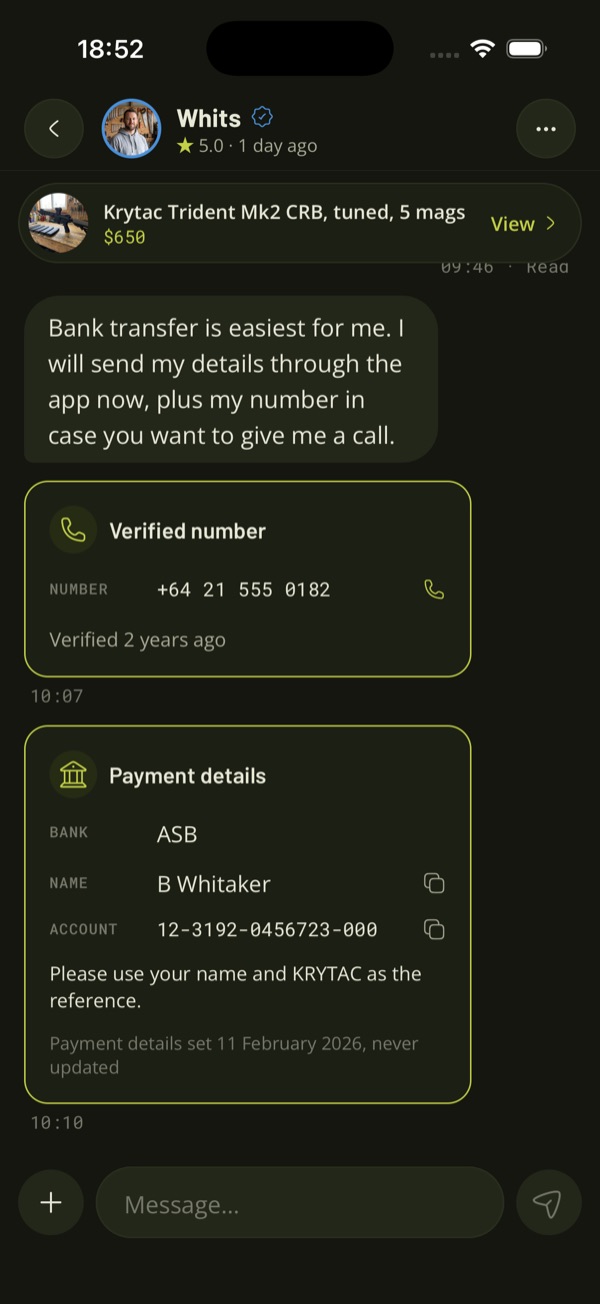
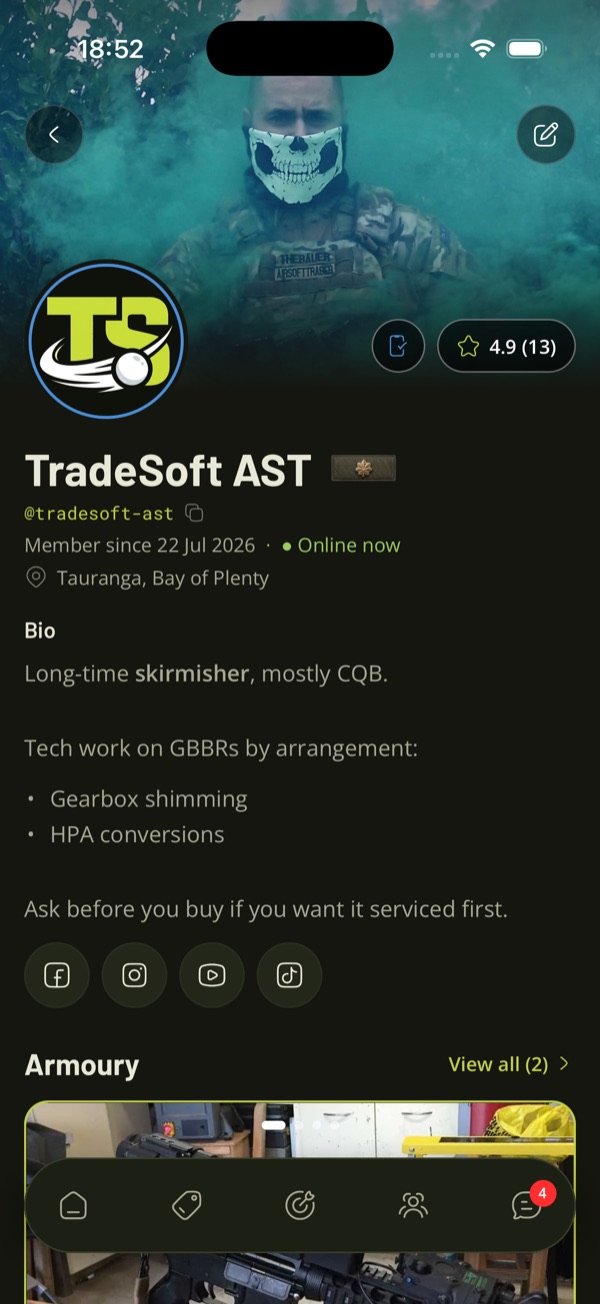
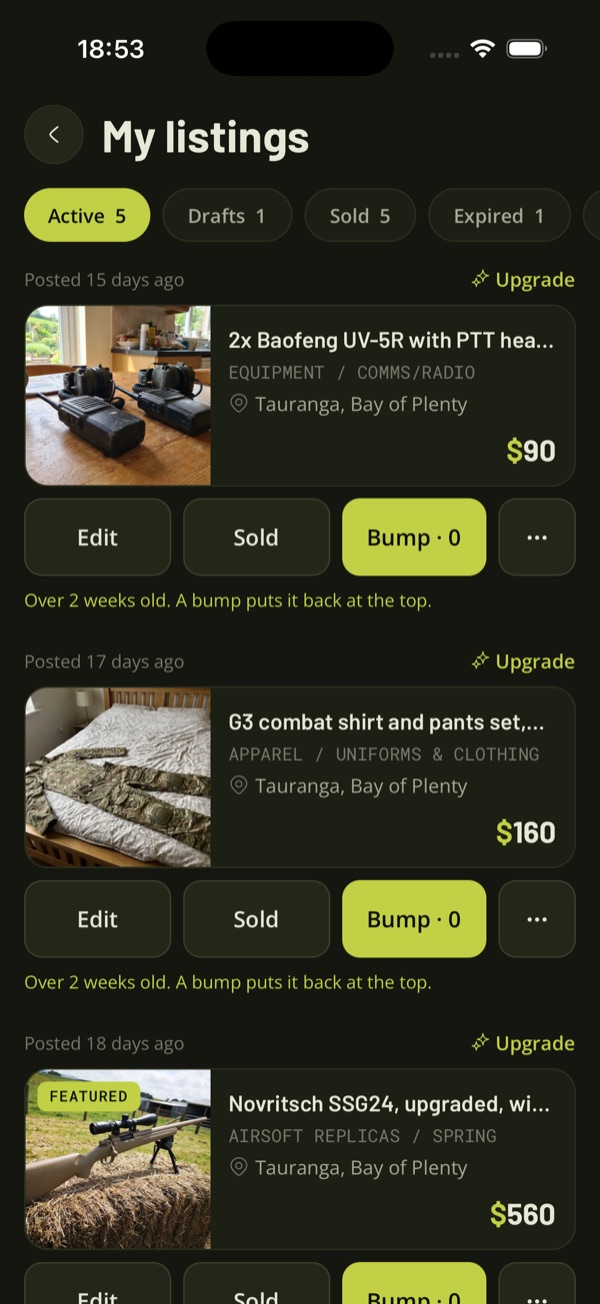
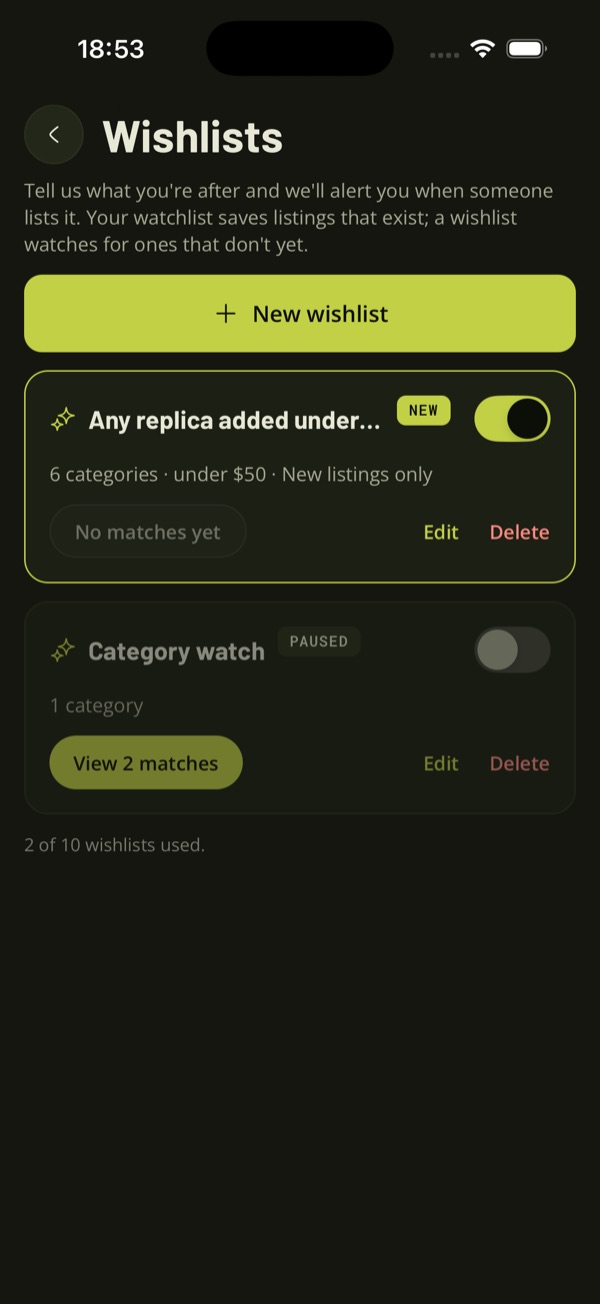
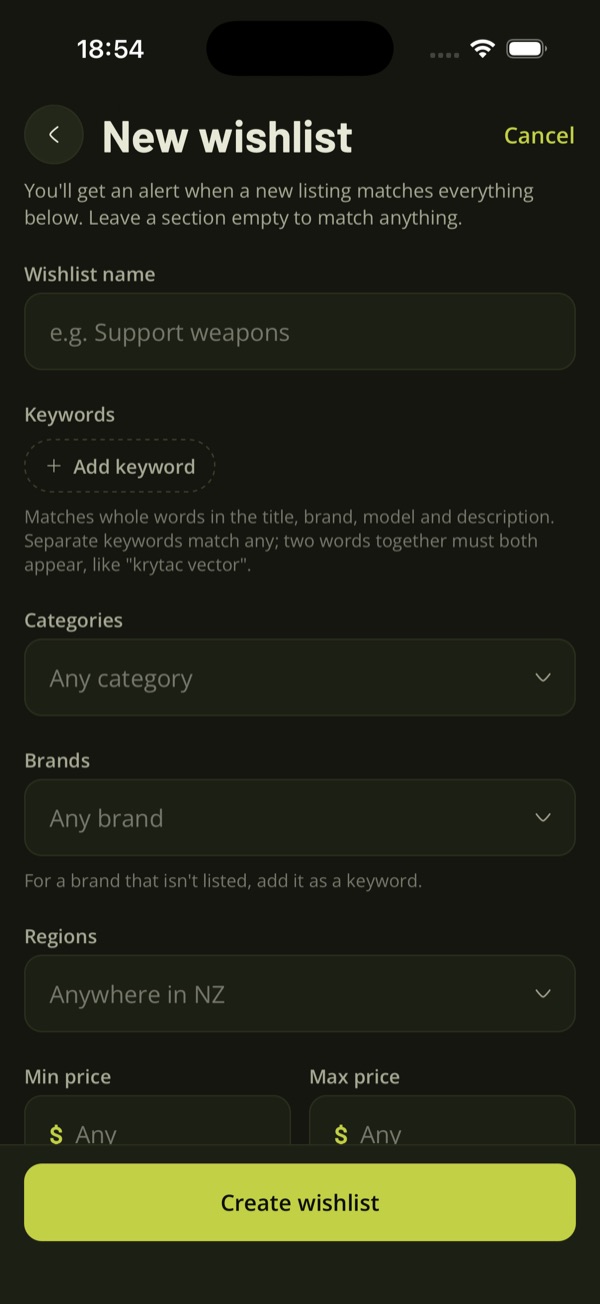
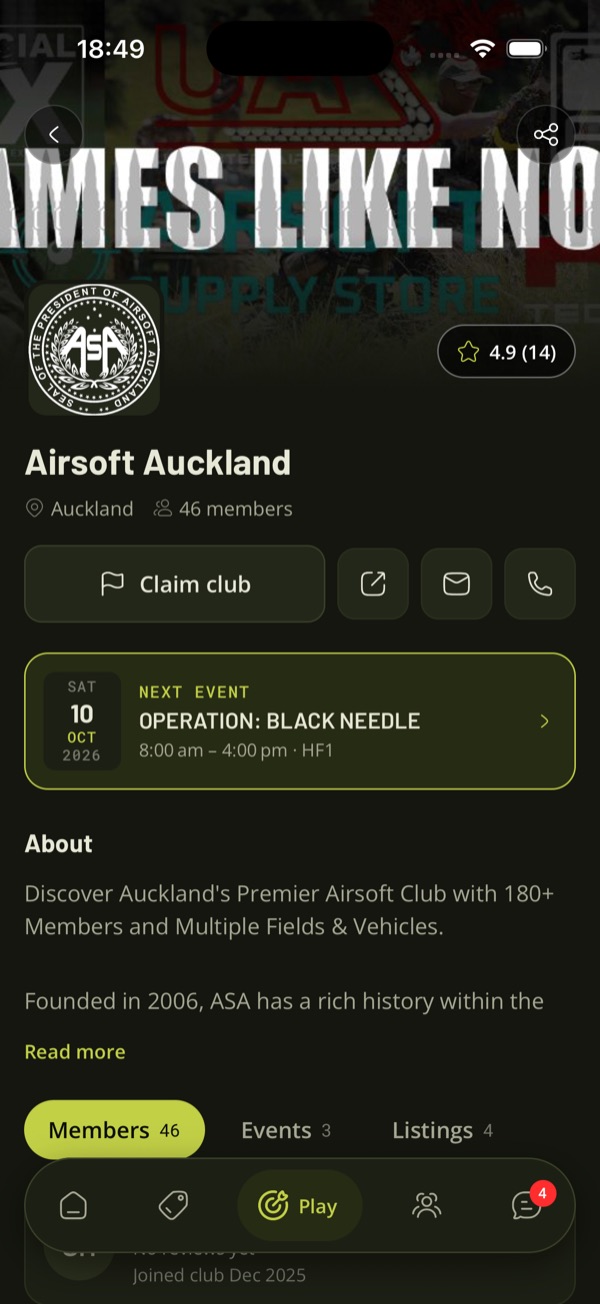
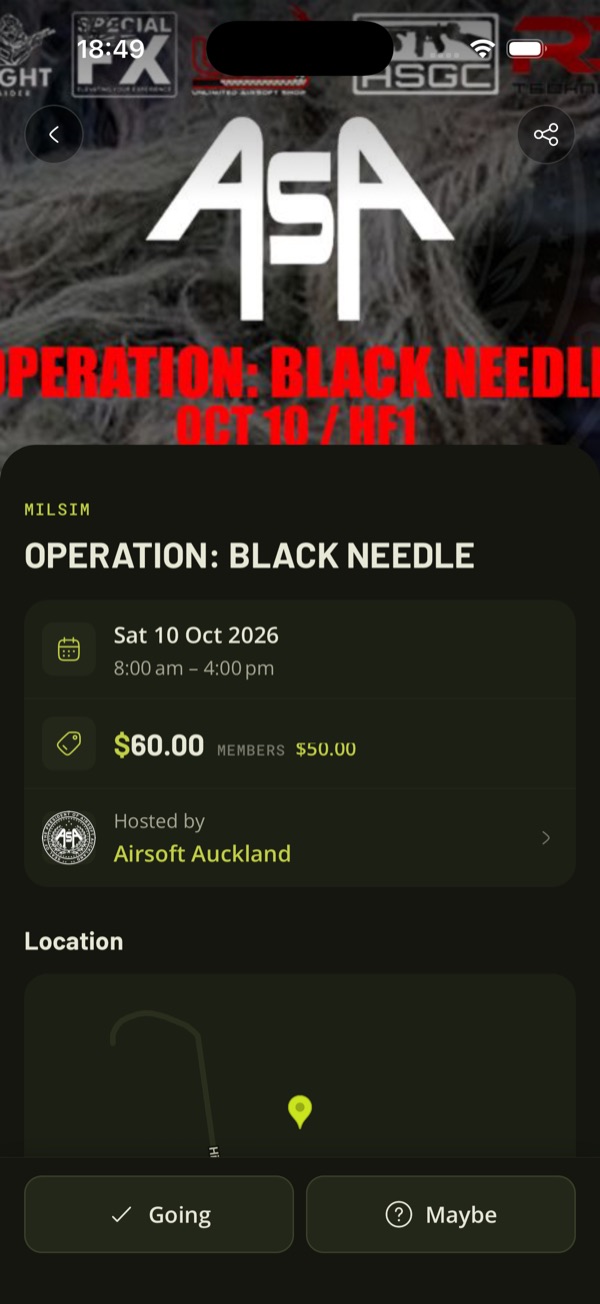
The redesign reaches every corner of the app, including your messages, profiles, listings, wishlists, club pages and events. The names, numbers and payment details in these screenshots are demo data, not real members.
Limits worth knowing
- Members are invited by exact email. It must be the email on their TradeSoft account. There is no search by name, on purpose: a name search would let anyone running a club look up who uses TradeSoft.
- The member needs a TradeSoft account first, and it must be a personal account. Business accounts cannot be club members.
- The badge appears only after the member accepts. Sending the invite does not verify anyone.
- Players cannot ask to join from the app. The Join club button shows how to contact the club. The club sends the invite.
- Some club changes are not in the app. Creating, editing and importing events, answering event questions and seeing who is going all stay on the website. Your club's name, logo and website can only be changed by TradeSoft, and adding or removing a manager is also done by us. Email [email protected] for either.
- Photos can only be rotated before saving, and only in The Armoury. To fix a photo that is already saved, remove it and add it again.