
Club Managers: Import your events from a link
Paste a link to an event on your own website or a public Facebook event, and we fill in the form for you. You get drafts to check before anything goes live.
Clubs have always posted their games wherever their people already are: the club website, a Facebook event, a forum thread, a group chat. That works for the members you already have. It does not work for the player who has just moved to your region and has no idea your club exists.
More of you have started posting events on TradeSoft too, and that is the part we want to make easier. TradeSoft was never meant to be only a marketplace. The point is a central resource for New Zealand airsoft, and a national events calendar is a large part of that: one place where any player can see what is on near them, whichever club is running it.
The problem was never that clubs did not want to be there. It was that posting an event on TradeSoft meant typing out details you had already written somewhere else. So now you can paste the link instead, and we fill in the form for you.
Everything here lives in the web app, under Club management > Events. Nothing changes in the mobile app, there is no update to install, and players do not need to do anything. Creating an event by hand works exactly as before, and is still the first option when you press New event.
Import an event from a link
Press New event and you now get two choices: Create from scratch, which is the form you already know, and Import from a link.
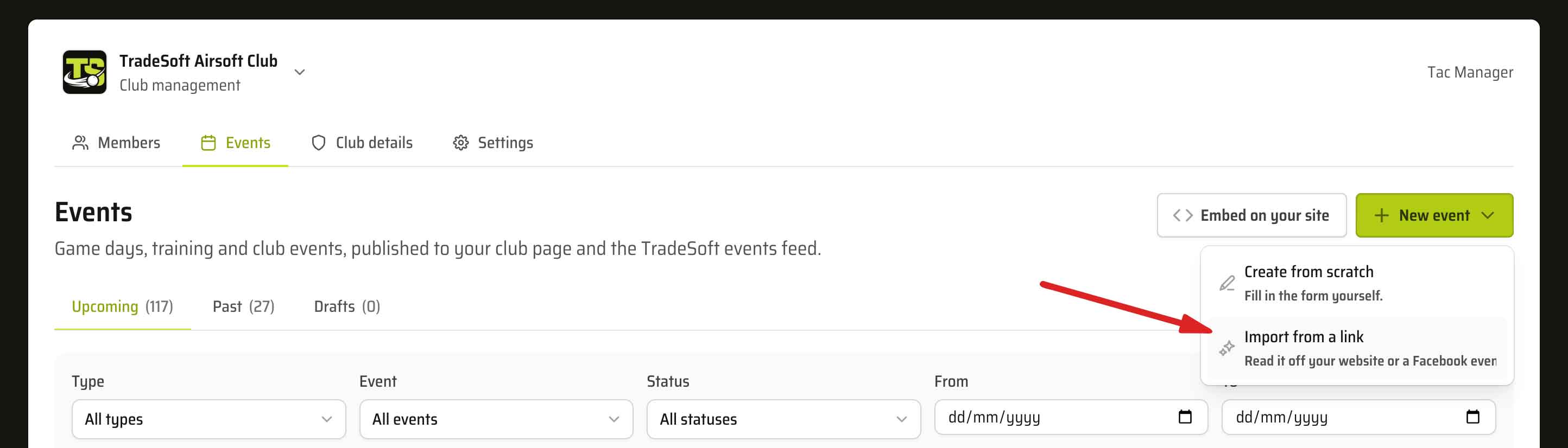
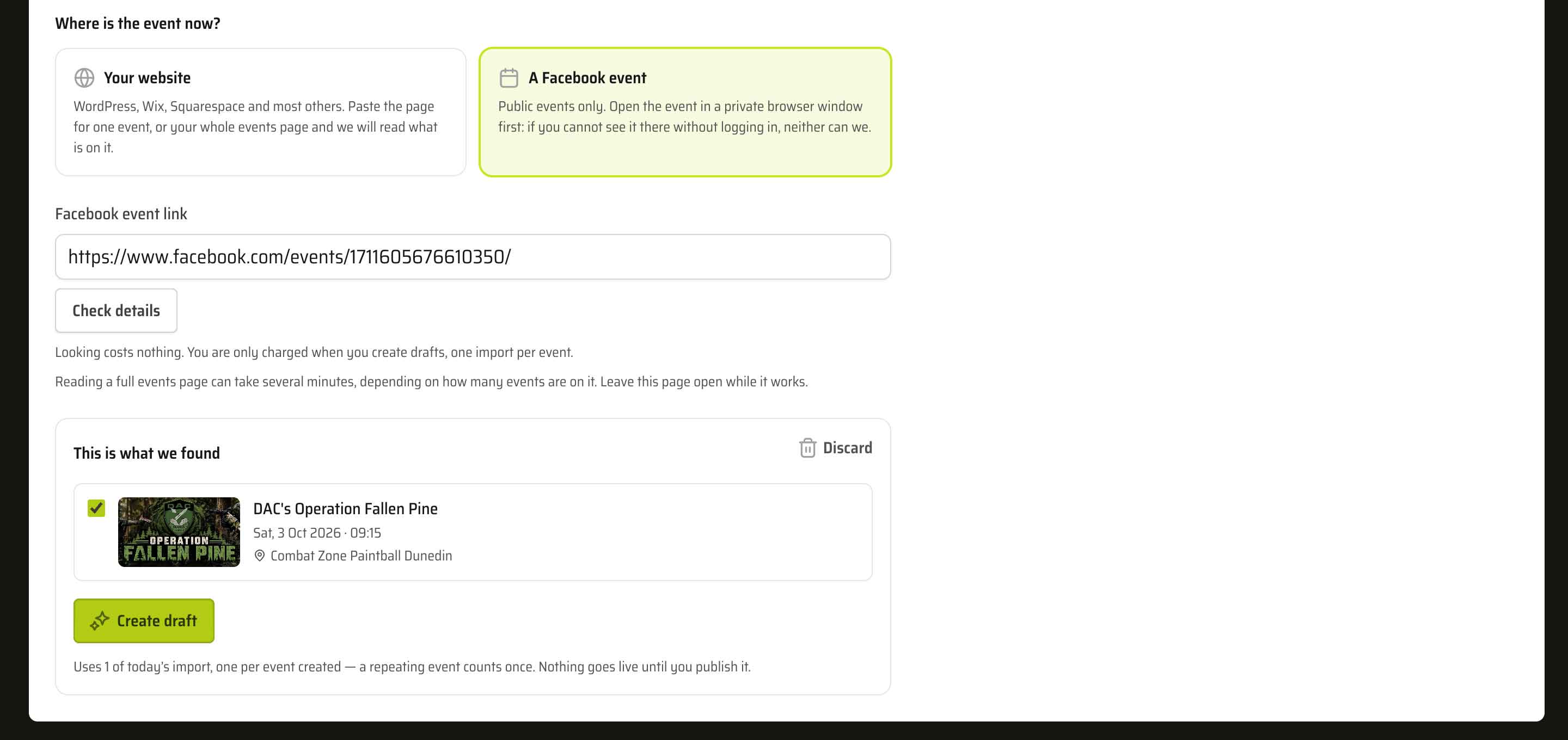
Say where the event is now, your website or a Facebook event, paste the address, and press Check details. We fetch the page and hand the content to a language model, which reads it the way a person would and pulls out the details: the title, the date, the start and finish times, the venue and the price. We show you what it found. If it looks right, press the button to create your drafts.
It fills in as much as the page actually states. Clubs write their events up in all sorts of ways, so a price buried in a paragraph or a start time written as "gates at 9" is usually understood. Anything the page never mentions is simply left blank for you.
Typing the same event out twice is also how dates drift and prices go stale between your own page and your TradeSoft one. Reading it off the original keeps the two saying the same thing.
One link can bring across a whole season
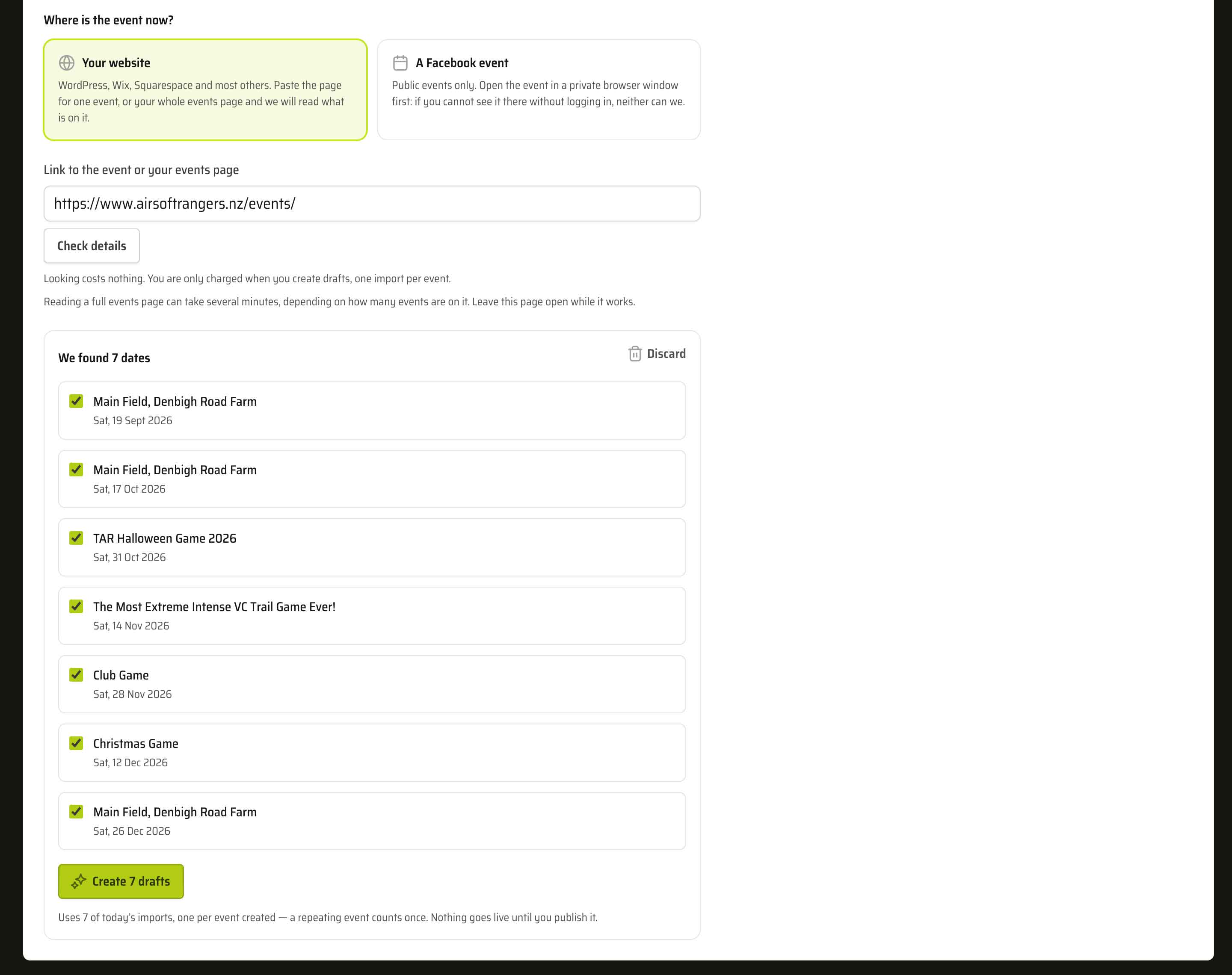
You can paste a single event, or your whole events page. We work out which it is.
If you paste a page listing your season, we read every event on it. You then tick and untick what you want. Everything starts ticked, so if you want the lot, press the button.
This is not really about saving typing. You could already set up a recurring event in one form, and you could already use Copy on an existing event. What this adds is that we read your own words off your own page, so nothing has to be retyped or checked back against the original.
Repeating games are recognised as one event
If your page lists the same game every Sunday, we do not create fifty separate events. We create one recurring event and show it as a single card marked Repeating event, with a line telling you how many dates it covers and how many were skipped.
Those skipped dates matter. If you run a working bee on some Sundays instead of a game, those Sundays are left out of the series, and they stay left out.
One recurring event is what you actually run, and it is one thing to edit later. Fifty separate events would be fifty rows to maintain.
Everything arrives as a draft
Nothing is published. Every import lands in your Drafts tab for you to check.
When you open a draft, anything still missing is listed at the top and marked in red on the form. If your website does not state a finish time, that is the field waiting for you. You can save the draft without it, but you cannot publish until it is filled in.
Import a single event and we take you straight to that draft, so you can finish it off while you are thinking about it.
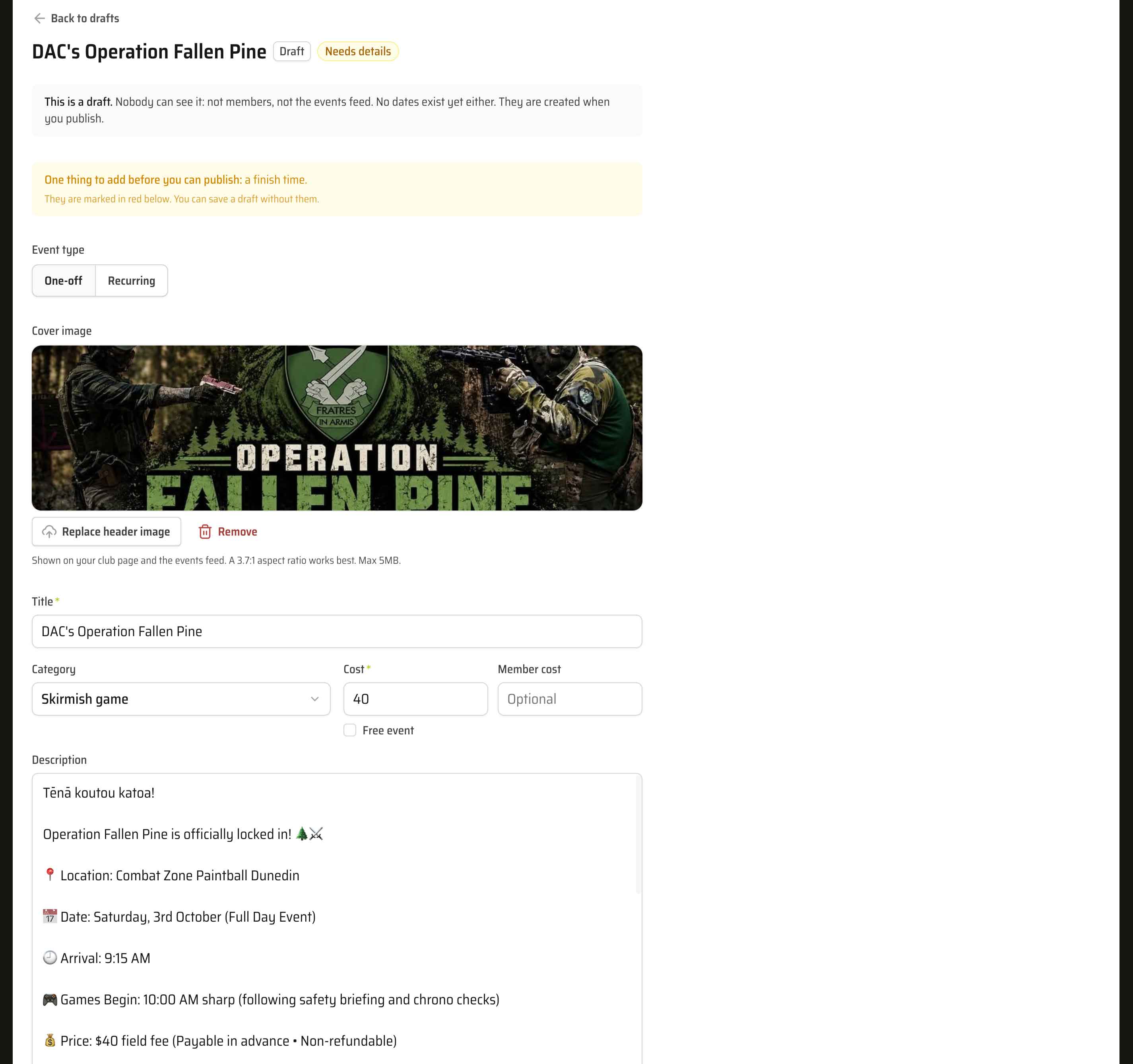
Imported drafts carry a small marker in the Drafts list, so you can tell them apart from drafts you started yourself.
Facebook events have to be public
We read a Facebook event the same way a stranger would: logged out. If the event is public, and the page that created it is public too, the details are there to read.
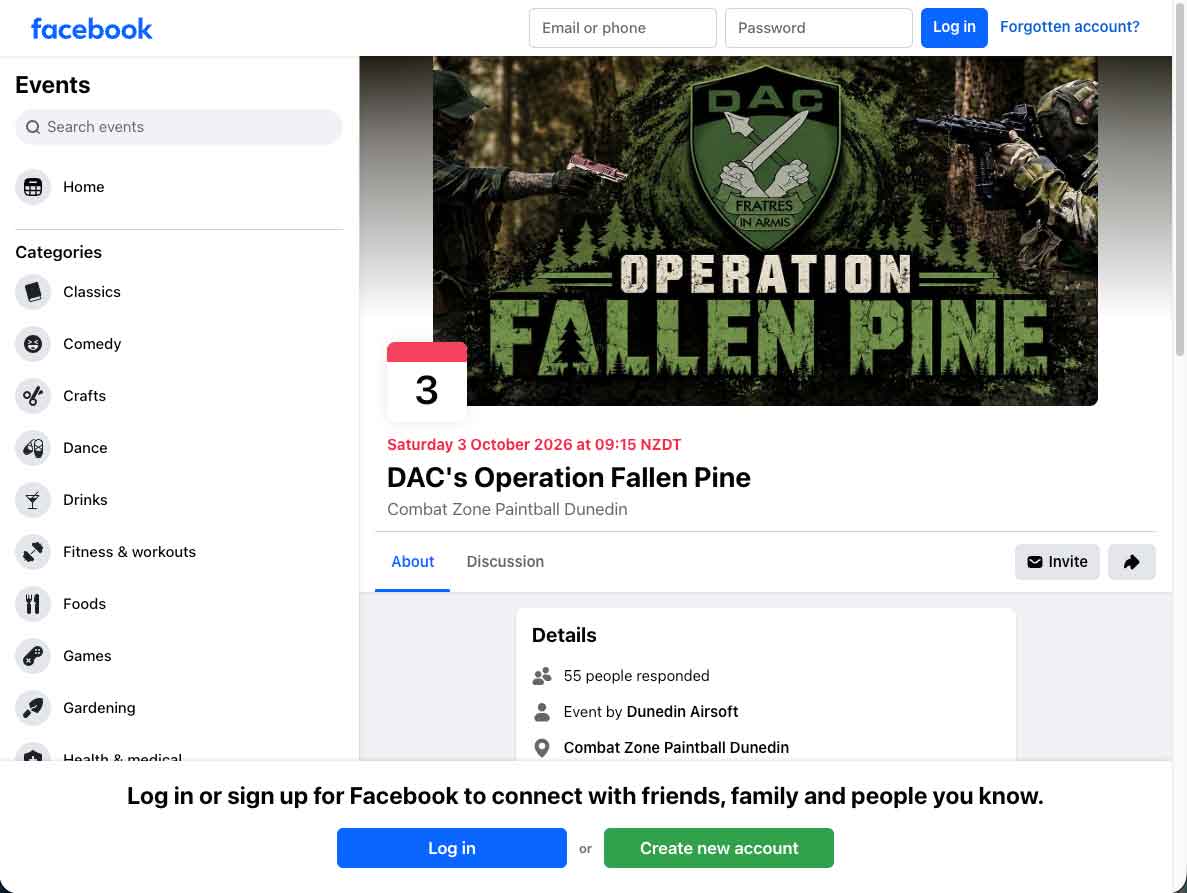
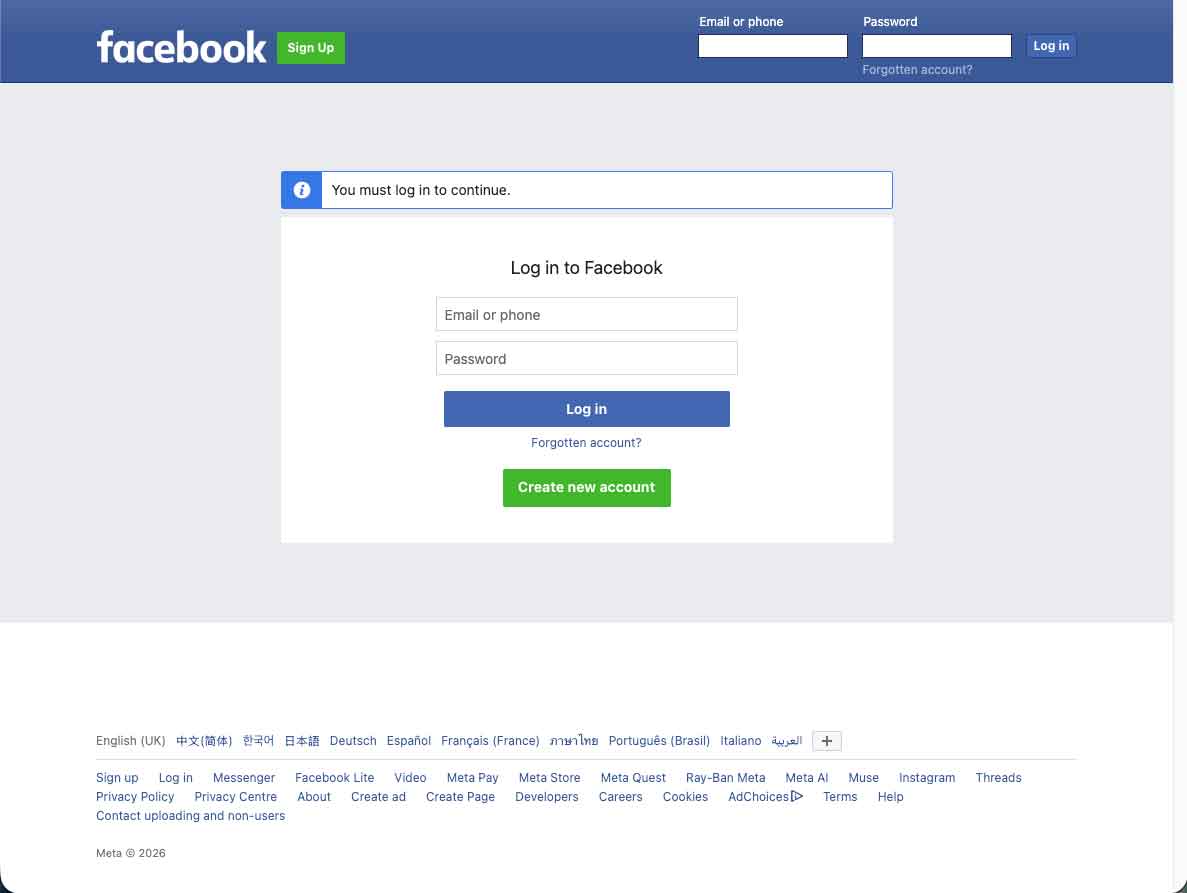
The test takes ten seconds: open the event in a private browser window. If you cannot see it there without logging in, neither can we. Worth checking your club's Facebook page the same way, because an event hosted by a page that is not publicly visible will not import either.
Tidying up afterwards
An import that brings in more than you wanted should be quick to tidy up, so a few other things changed at the same time.
- You can now select several drafts at once and delete them together.
- The tabs show counts, so Drafts (8) tells you what is waiting without opening it.
- Event descriptions now allow up to 5,000 characters, up from 2,000. Imported descriptions were running past the old limit.
A few things to be aware of
- Nothing is kept in sync. An import is a one-off copy. If you later change the event on your own website, your TradeSoft event does not update. This is the one most people will assume works the other way round, so it is worth saying plainly.
- Importing is free. There is no charge for this, to you or your club, and there never will be. What you have is a daily allowance of import credits, and the only reason credits exist is that the reading is done by a third-party language model that we pay for per use.
- 50 import credits per club per day. One credit per event created. A repeating event costs one credit, however many dates it covers. Credits reset at midnight New Zealand time.
- Checking a link uses no credits. Paste, look, and change your mind as often as you like. A credit is only spent when you create a draft.
- We never go looking. We only read the exact address you paste. We do not go hunting through your website or your Facebook page for other events.
- Past events are not imported.
- Facebook events bring their cover image across. Website imports do not bring images, so you add your own.
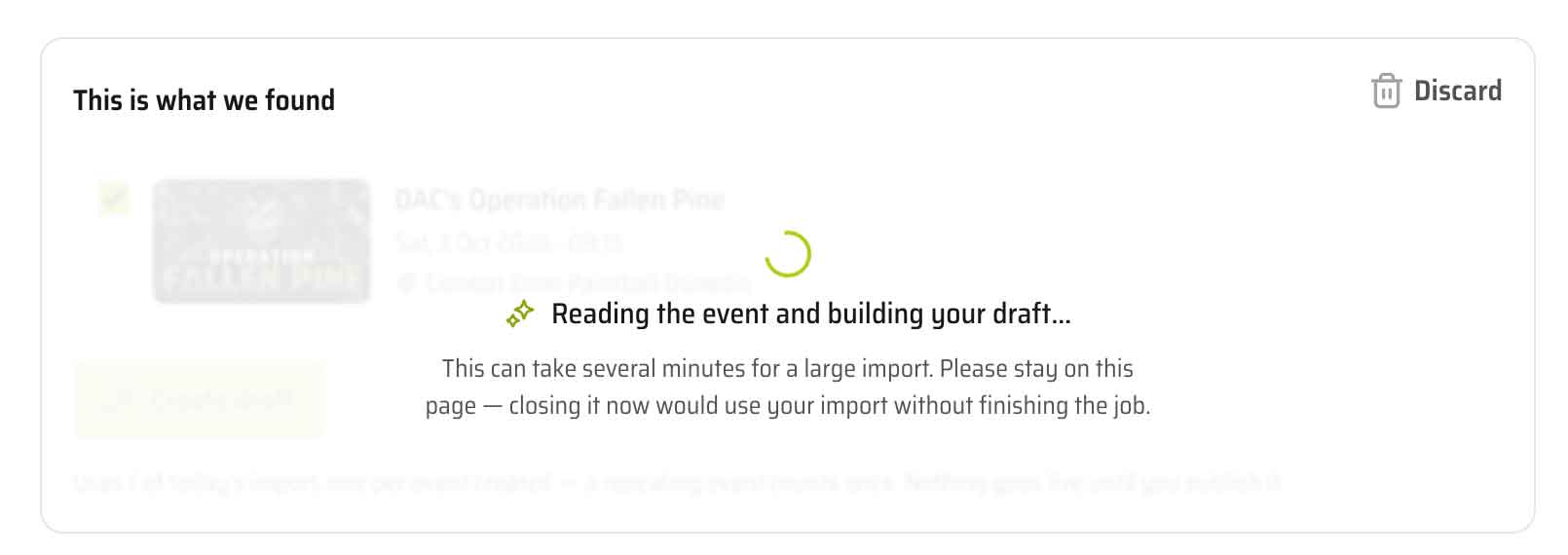
- Reading a full events page can take a few minutes. A count shows you how many events have been found so far. Leave the page open while it works.
- If one date in a series has its own name, it takes the series name. An AGM held on a normal game day will import under the game day title. Rename that single date afterwards if you want it to stand out.
- The Imports tab only appears if you have unfinished business. If you check a link but do not create drafts, the run waits there so you can come back to it. Once you create the drafts it disappears, and you can Discard a run you no longer want.
Where to find it
Open the web app, go to your club dashboard, pick Events, press New event and choose Import from a link.
This builds on drafts, copying and delete, which is where imported events land. And if you want your events going the other way, onto your own website, the events widget does that.