
// GETTING STARTED
Creating your TradeSoft account
Signing up takes a minute or two. Here's how to create your account, verify your details, and set up a trader profile that other Kiwi players will trust.
1. Download the app and get started
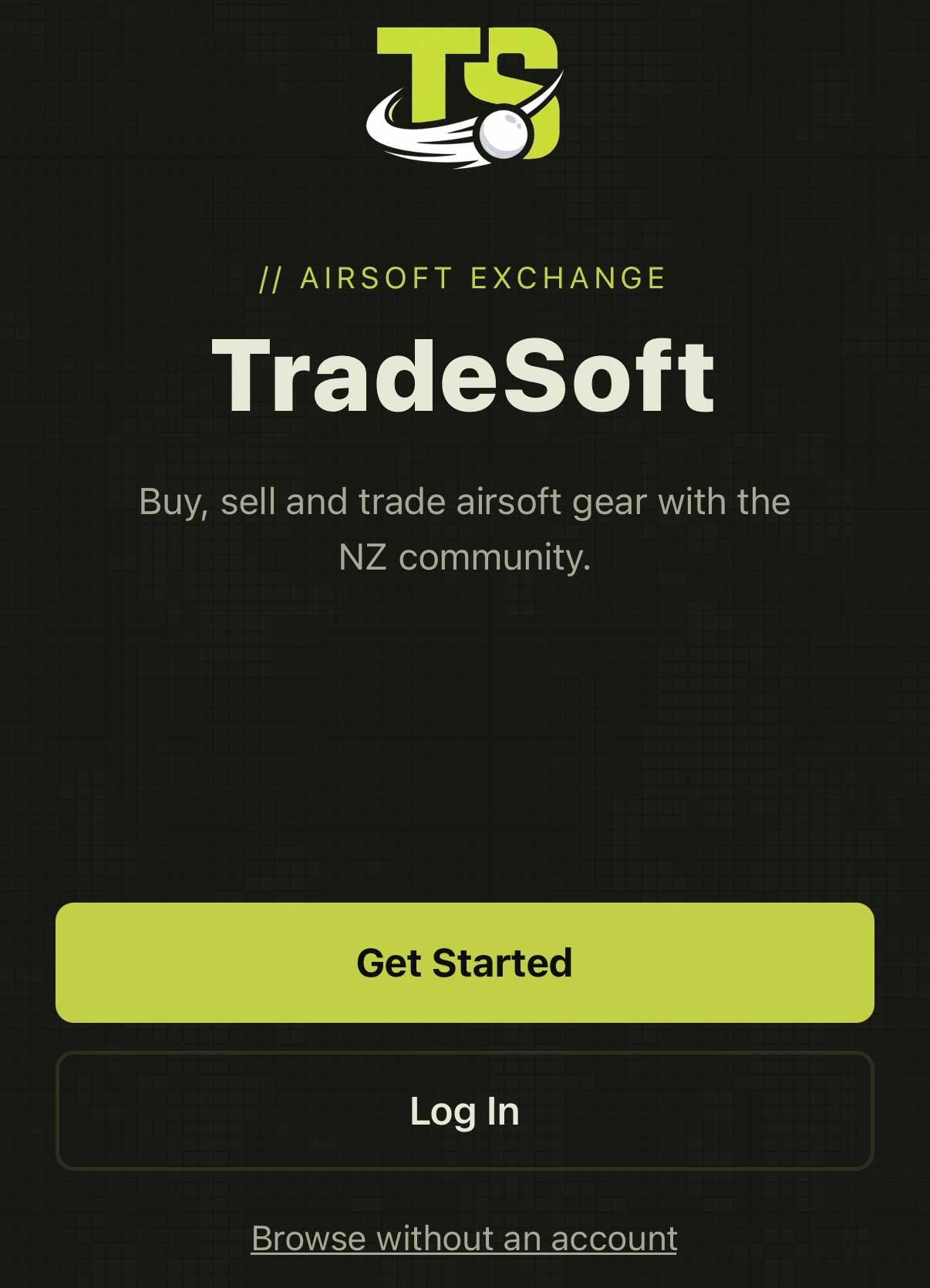
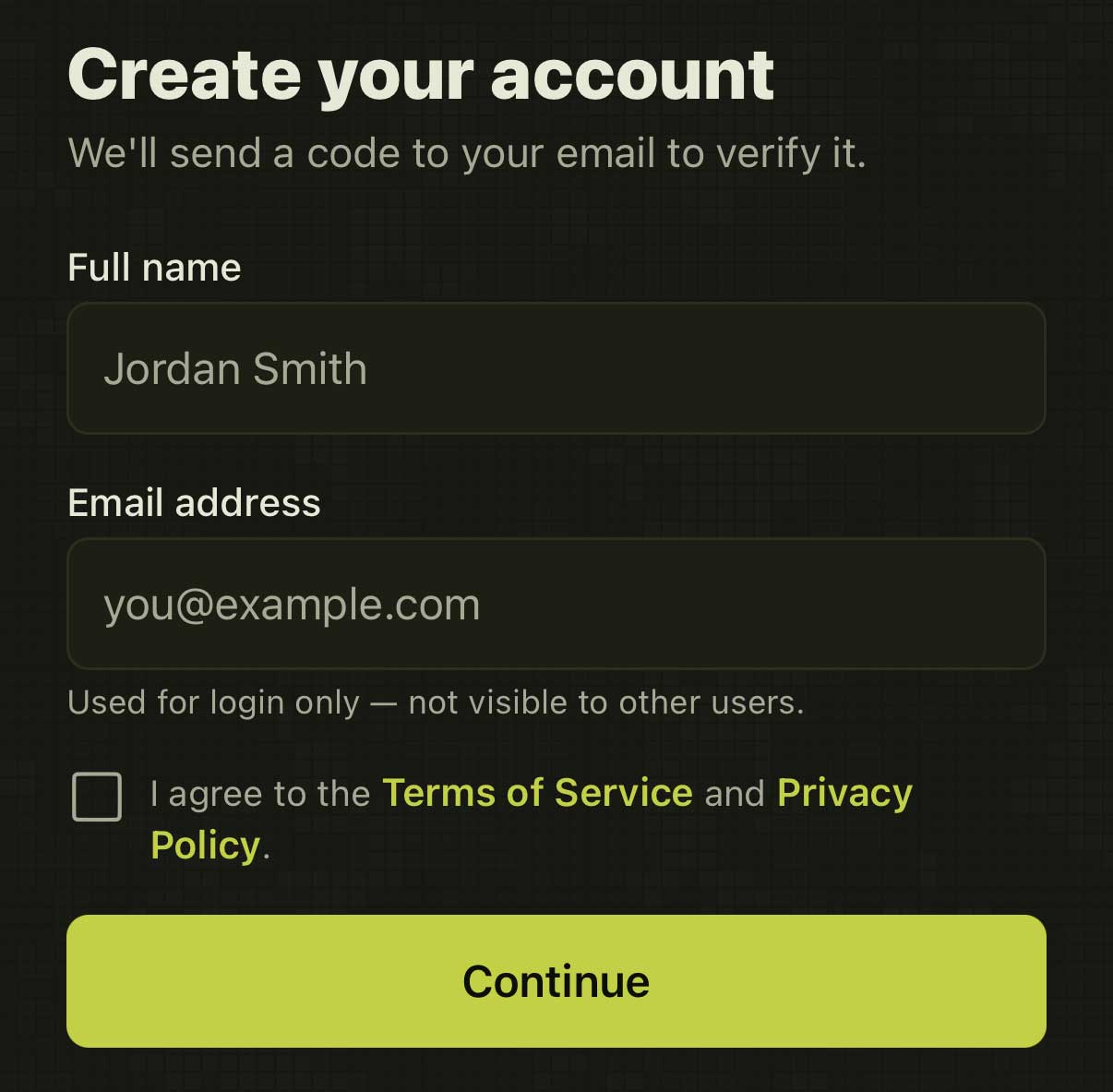
TradeSoft is a mobile-first marketplace for iOS and Android. Open the app and tap Get started. Accounts are created with your email address: enter your name and email to begin. (We don't use third-party sign-in providers, so there's nothing else to link.)
2. Verify your email
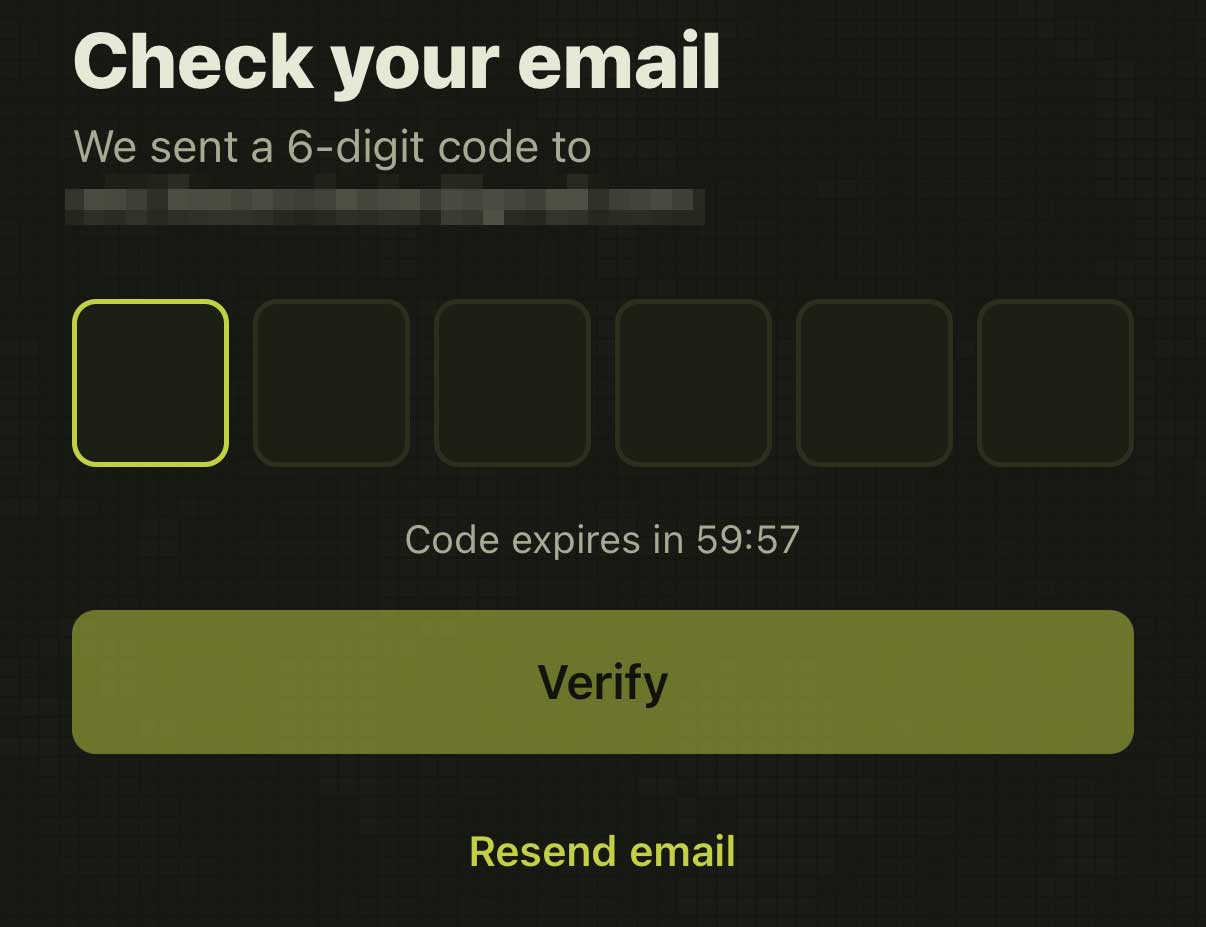
We'll email you a 6-digit code. Enter it in the app to confirm your address is really yours. If it doesn't arrive within a few minutes, check your spam folder and make sure the address was entered correctly. You can resend the code from the app.
3. Set your password, photo and display name
Once your email is verified, you'll set up the core of your account:
- Create a password.
- Add a profile image.
- Choose a display name. This is the name other traders see, so your legal name is never shown publicly.
4. Verify your phone number (optional)
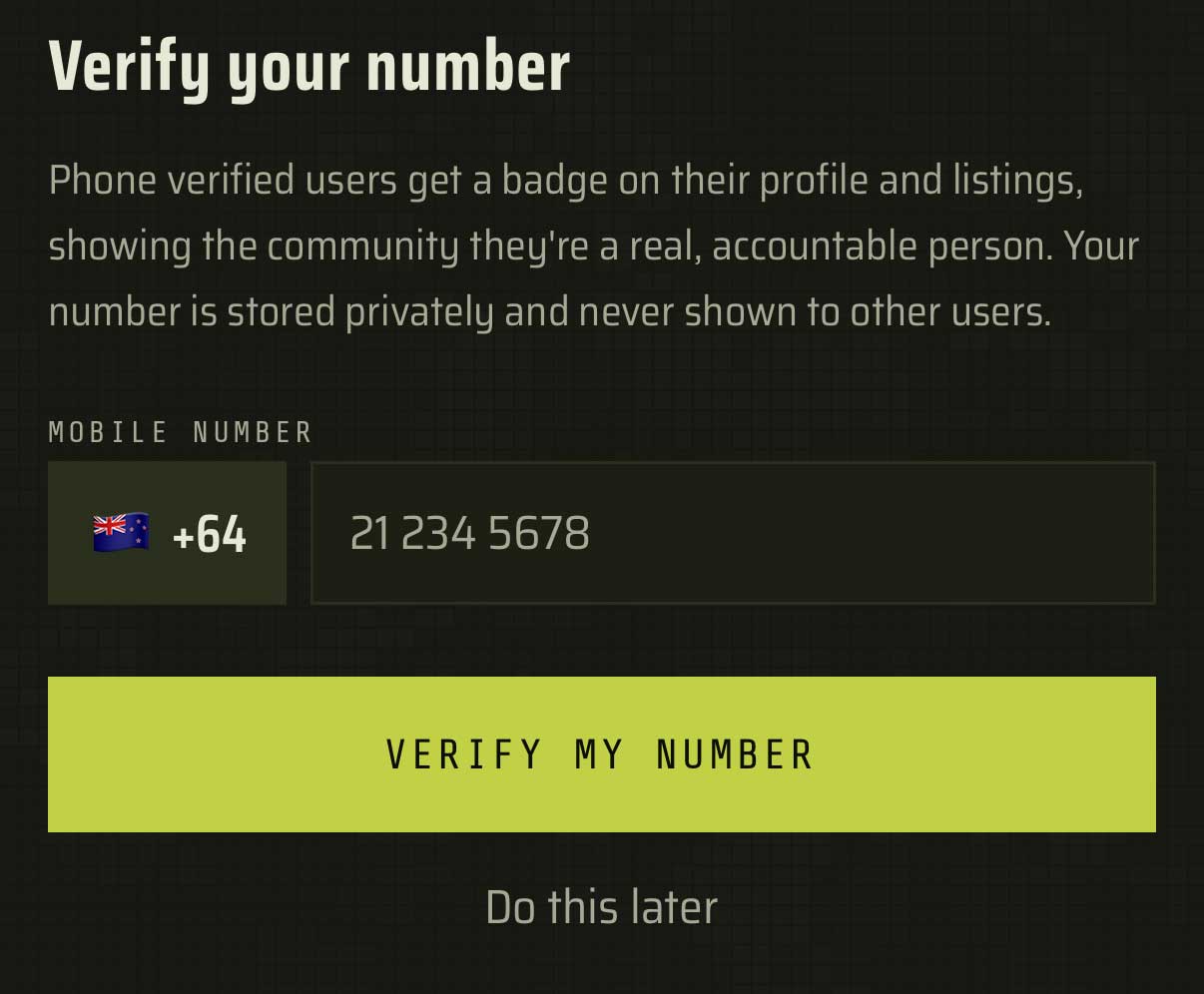
Next you'll be offered the option to verify your phone number. It's optional, but it's what keeps TradeSoft a community of real people rather than anonymous accounts. We'll text you a one-time code; enter it in the app to earn a verified badge on your profile. Buyers and sellers are far more comfortable dealing with verified traders, so this step directly helps you close deals.
5. Finish your trader profile
You can flesh out your profile any time from Profile > Edit Profile. A complete profile builds trust fast. We recommend you:
- Write a short bio: what you play, your local field or club, and what you tend to buy or sell.
- Set your general location (region), so buyers know roughly where you are.
- If you belong to a registered club, look into Club Verification for an extra trust badge.
You're ready to trade
That's it. You can now browse listings, save searches, message sellers and post your own gear. New to buying? Read how to make an offer on a listing. Ready to sell? Head to the Help Centre for selling guides.